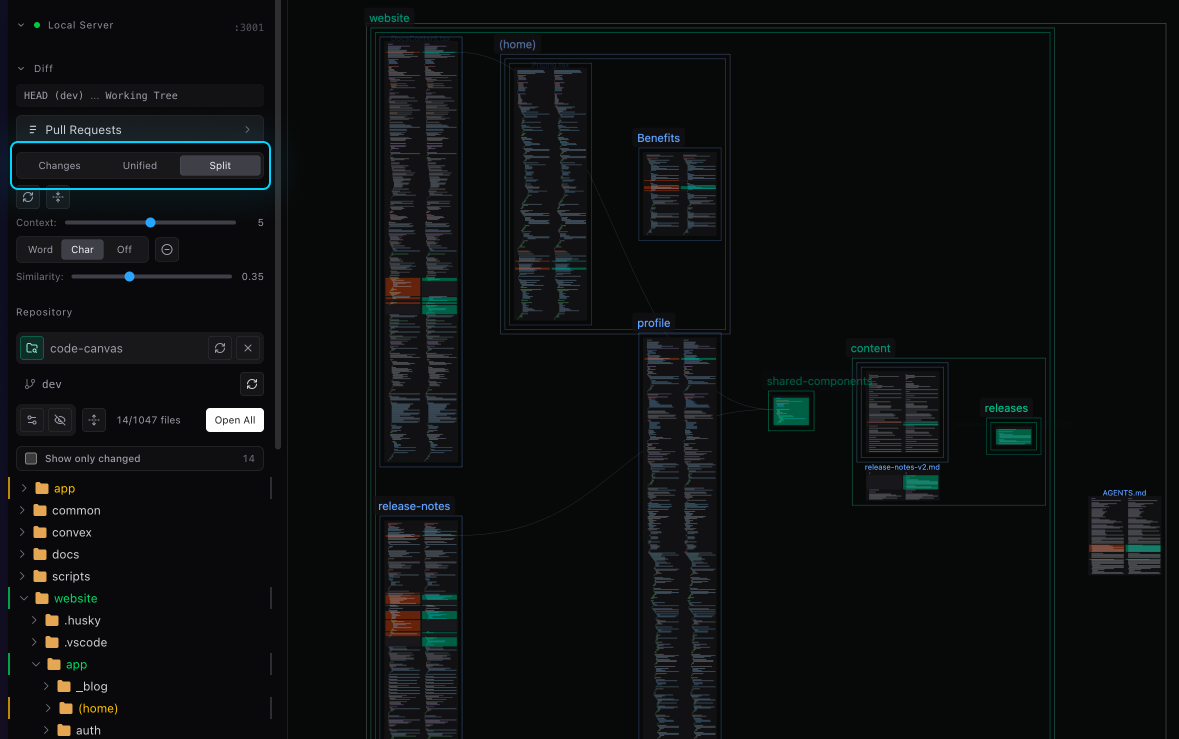
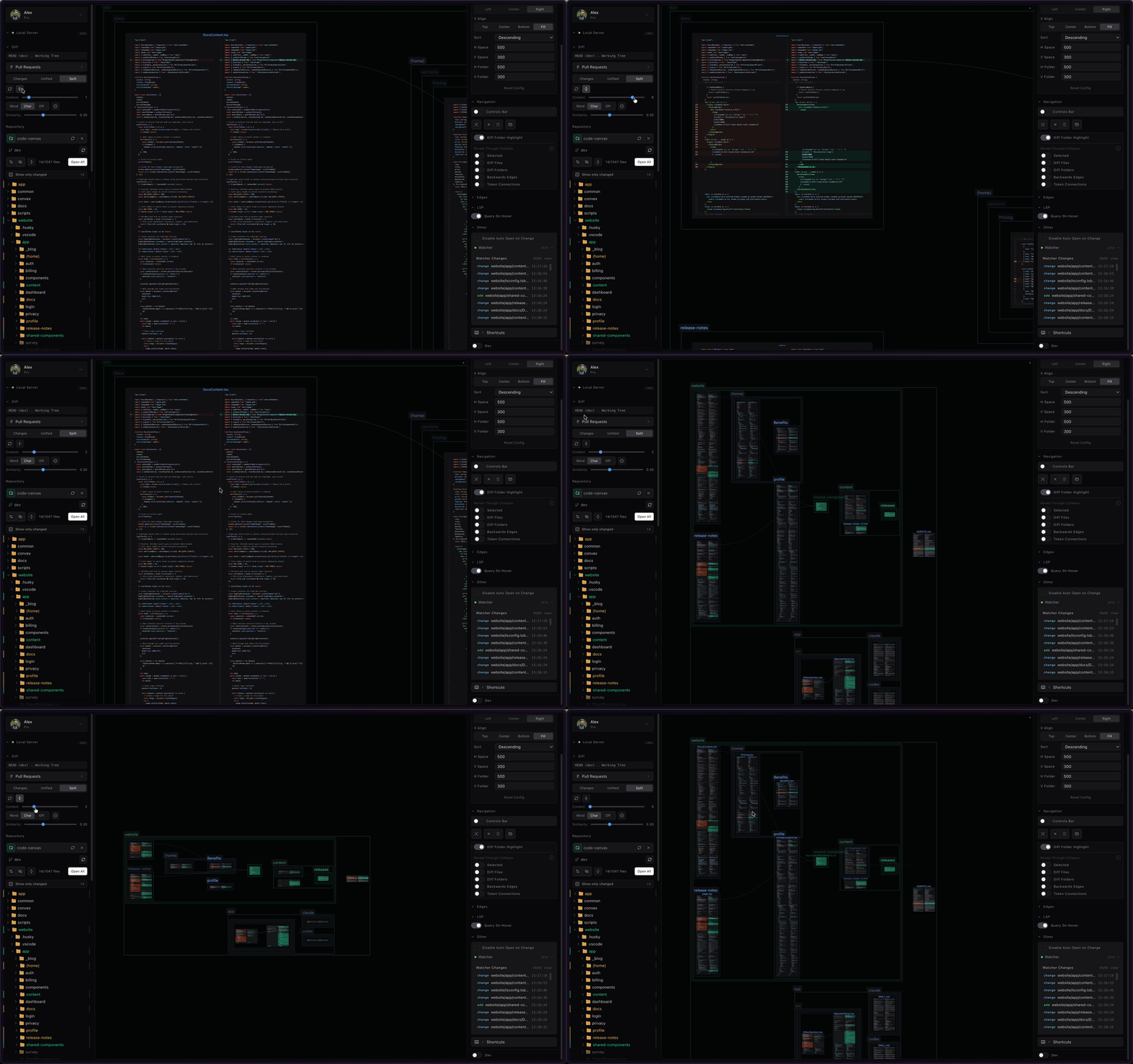
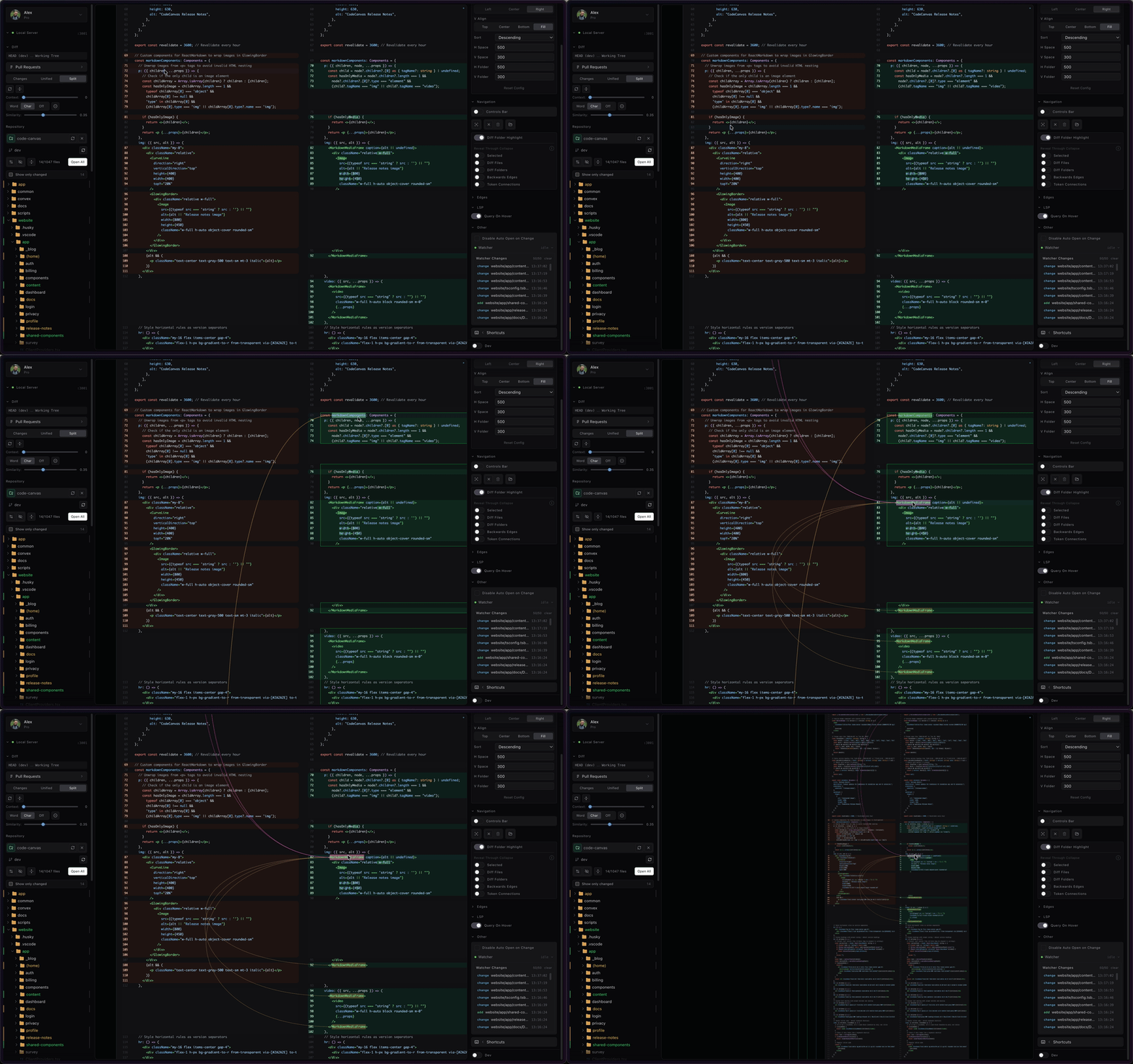
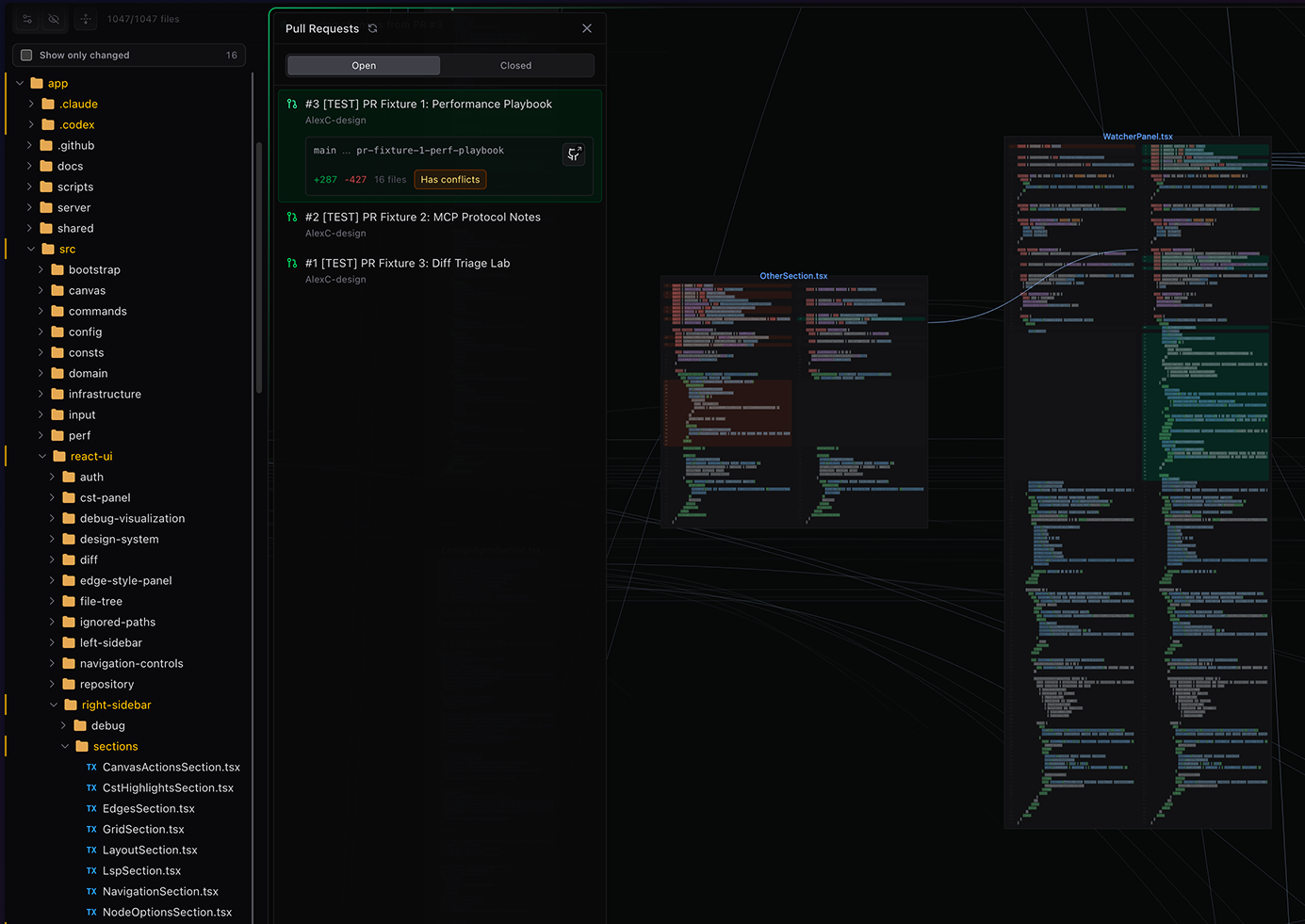
Release Notes
v0.14.0Jan 02, 2026
Added
-
Floating action bar
- Added a new draggable floating toolbar with commonly used actions
- Moved selected node toolbar actions (open imports/exports, highlight top level symbols, open in VSCode editor) to the floating actions toolbar
- Node actions now work for multiple selected nodes simultaneously
- Includes quick toggles for auto-layout, fit view, and performance monitoring
-
Token selection panel
- Added a new toolbar panel for selected tokens (T to toggle)
- View all selected tokens with their references, definitions, implementations, and call hierarchy
- Improved display of selected tokens (Cmd/Ctrl+click on code)
- Added "Sync files with tokens" option to auto-open files containing references to selected tokens
- Added advanced token display settings to customize visual appearance of tokens and their references
- Added configurable rules for connecting tokens to their references, definitions, implementations, incoming/outgoing calls
-
Edge visualization options
- Added edge gradients with configuration settings
- Added backwards edges highlighting (edges flowing right-to-left)
- Added edge arrows with "key elements only" mode to show arrows only on token/selected/backwards edges for better performance
- Added re-export / barrel edge toggles to show or highlight edges through index files
- Added exports/imports in header toggle to stack handles in the file header instead of inline
-
Git integration improvements
- Commits now automatically refresh the canvas, updating the git status of files
- Deleted files are automatically removed from the canvas after a commit
- Undoing a commit will restore and auto-open deleted files
-
Open folder files
- Added "Open sibling files" button to open files in the same folder as selected files
- Added "Open sibling folders" button to recursively open files in sibling folders
- Preview shows exactly how many files will be opened before clicking
-
Performance options
- Added performance details panel showing live FPS monitoring, node/edge/handle counts
- Added toggle options to throttle updates to canvas elements during zoom (folder names, file names, node borders, edge thickness, etc.)
- Options to turn off live updates during zoom so they only update at the end of the zoom action
-
Folder label improvements
- Improved visibility of overlapping folder labels by combining nested labels with path segments
- Hovering on a folder label reveals a panel showing hidden nested folder labels
- Added max label segments setting to control how many segments show inline
-
Sidebar and toolbar
- Added ability to resize the sidebar when expanded, or the sidebar drawers when open
-
Canvas visualization options
- Added provider status indicator showing VS Code language provider loading status (spinner → checkmark)
-
Ignored files
- Added gitignore auto-detection on first workspace open to populate ignore settings
-
File actions
- Added separate "Refresh symbols" and "Refresh dependencies" buttons
- Added "Auto expand large files" toggle
- Added "Hide unconnected export handles" toggle
- Added config files section in settings to scan for tsconfig, jsconfig, etc. for path alias resolution
-
Layout algorithm improvements
- Hybrid algorithm: reduced backwards edges when circular dependencies exist between folders using net edge counting
- Folders algorithm: added folder aspect ratio control, vertical alignment options, and dependency sorting for leaf folders
- Added folder spacing gradients and curve intensity controls
Changed
-
Performance improvements
- Greatly improved performance during zoom and pan actions when many nodes are open by removing unnecessary component re-renders
- File watcher now batches file updates with a 500ms delay for faster canvas refresh when switching branches
-
Keyboard shortcuts
- Removed M for minimap toggle (minimap feature removed)
- Added Shift+E to set edge opacity to full
- Added Shift+B to cycle edge style in reverse
- Added T to toggle selected tokens panel
- Changed E to toggle edge opacity (depth-based/off)
-
File display
- Files no longer turn blue when zoomed out - diff highlighting remains visible
-
Ignore patterns UX
- Improved UX for managing file ignore patterns
Fixed
- Fixed symbols not loading first time the canvas opens
- Fixed syntax highlighting for multi-line comments
- Fixed viewport position not saving on close
v0.13.0Nov 22, 2025
Added
-
PHP, Svelte, and Next.js support
- The canvas now supports
.php,.svelte, and Next.js files for all features:- Showing dependency edges between files based on imports/exports
- Showing symbol outline highlights when zoomed out
- Ability to ctrl/cmd+click on tokens (functions, variables, classes, etc) to highlight them and show edges for references, definitions, implementations and incoming calls
- The canvas now supports
-
Dependency graph export
- Added option to export the dependency graph as JSON, CSV, or DOT format
- The option can be found under 'Settings > Dependency Graph'
Changed
-
Dependency handle visibility
- Large files that are collapsed will now show dependency handles in the file header so you can still see which files connect to them
- Import handles will now show in more faded colors for external imports
- Unused export handles will now be hidden
-
Performance improvements
- Improved regex styling performance when lots of files are open
- Small performance improvement when files with lots of dependencies are open
Fixed
- Fixed dependency edge cases detection in JavaScript/TypeScript:
import type { ... }statementsexport enum ...declarationsexport memo( ...patterns
v0.12.0Nov 20, 2025
Added
-
Vue.js support
- The canvas now supports
.vuefiles for all features:- Showing dependency edges between files based on imports/exports
- Showing symbol outline highlights when zoomed out
- Ability to ctrl/cmd+click on tokens (functions, variables, classes, etc) to highlight them and show edges for references, definitions, implementations and incoming calls
- The canvas now supports
-
Ignored files management
.gitignorepaths that are not ignored by the open command or file watcher will now be displayed under 'Settings > Ignored Files'- Added option to automatically add
.gitignorepaths to the ignored files list - Ignored file paths for the open command and file watcher are now saved per workspace
-
Deleted files selection
- Added option to select deleted files on the canvas
- The option can be found in the toolbar under "File actions > Deleted Files"
Changed
-
Layout algorithm improvements
- Layout algorithms now keep the node closest to the center of the screen in the same position
- The rest of the nodes will be arranged around it, reducing the amount of movement when files are re-arranged (e.g. from the auto-layout option)
-
Token edge visualization
- Same-file token edges are now more curved to increase readability
Fixed
- Fixed React fragments not displaying in symbols overlays when zoomed out
- Fixed editor tokens not clearing when the VSCode editor is closed or the node is deselected
- Fixed a bug where files edited by Cursor were unable to be opened in an editor to the side
- Fixed deleting a folder not updating correctly on the canvas
v0.11.0Nov 13, 2025
Added
-
Python support
- The canvas now supports
.pyfiles for all features:- Showing dependency edges between files based on imports
- Showing symbol outline highlights when zoomed out
- Ability to ctrl/cmd+click on tokens (functions, variables, classes, etc) to highlight them and show edges for references, definitions, implementations and incoming calls
- The canvas now supports
-
Editor highlighting
-
While navigating a file in the VSCode editor the position of the cursor is reflected on the canvas
- The selected token and symbol will also be highlighted, along with its reference edges
- This option can be toggled off in the toolbar, under File actions > Reflect editor`
-
Added options for ignoring files, folders, extensions or patterns when opening
- Under Settings > Ignored Files you will find two tabs Open command and
File watcher - A list of files and patterns to be ignored by the open command or file watcher can be added here
- Open command will ignore opening the files when right clicking in the vscode file tree, or when navigating the file inside of VSCode with the Reflect Editor option on
File watcherwill ignore file changes for those files (not opening or updating them in the canvas -> useful to ignore build folders/node modules, etc)`
- Under Settings > Ignored Files you will find two tabs Open command and
-
Added collision detection for folder names
- When folder names overlap, the ones with deeper nesting levels will be hidden to reduce clutter
-
-
JSX/TSX symbol support
- Added jsx/tsx support for symbol overlays
-
Shortcuts and UI
- Added a button in the node toolbar to easily open the file in a VSCode editor to the side
- Added ctrl/cmd+S shortcut to expand / contract the toolbar
- Added shortcuts 1 through 6 for toolbar options
Changed
-
Symbol updates (symbol outlines show on files when zooming out)
- Symbols have colors based on type (functions, variables, classes, types, etc)
- Colors can be seen under settings - symbol colors (with option to toggle monochrome)
- Removed toggle for symbol visibility. Symbols are now always visible
- Symbols have 3 depth levels as you zoom out, with increasing number of details the closer you're zoomed to the file
- First level will show all symbols and their names for multi-line symbols
- Second level shows names only when hovered to reduce clutter
- Third level shows only top level symbols
- Symbols can now be ctrl/cmd+clicked to highlight their token and see reference connections
-
Token highlighting
- Highlight and clicking on tokens now requires holding ctrl/cmd, just like in the VSCode editor (previously it was on by default)
- ctrl/cmd+clicking a token will highlight it and display its connections, and will deselect any other active token highlights
- Holding shift will allow for multiple token selection (previously on by default)
-
Performance improvements
- Drastically improved file loading speed, especially when loading multiple files (~20x faster loading files on the canvas)
- Increased general performance by adding further virtualization to other node elements
- Symbols and git changes are only shown for nodes that are in view, increasing performance when a lot of nodes are open
- Improved performance when a lot of files with git changes are open by stacking together consecutive lines into a single element
- Also increased visibility of git changes (added/deleted/changed lines) on the canvas when zoomed out
-
UI and display changes
- Removed option to hide file names manually
- File names will now be automatically hidden when zoomed out
- Removed zoom level controls for individual elements. There are now 6 levels of zoom with sensible defaults, that control the level of detail of nodes on the canvas. More information and fine grained controls over the level of detail will be added in future releases
- Removed option to hide file names manually
-
Diff mode
- Added ability to toggle diff mode per file (previously applied to all files)
- Toggling between
changes / split diff / unified diffwill now apply only to selected files (or to all files if none selected)
- Toggling between
- Added ability to toggle diff mode per file (previously applied to all files)
-
Layout algorithm
- Improvements to hybrid layout algorithm defaults and aspect ratio calculations
- Applying a layout algorithm when a single node is selected will keep the current node in place
- The rest of the files will be laid out around it, making it so that the file you're watching stays in place as the canvas re-arranges (from opening other files when the auto-layout option is on for example)
Fixed
- Fixed layout algorithm UI not showing correct options when first opened
v0.10.02025-10-6
-
Complete remake of UI and design system
- Added more intuitive controls for all the canvas features.
- The sidebar is now expandable and all the panels have been revamped to improve clarity and usability.
- The canvas now supports light theme, the option can be found under settings.
-
Other changes
- Added option to change edge type for tokens.
- Added option to zoom only selected file names.
v0.9.0Sep 13, 2025
Added
-
Complete remake of layout algorithms
-
There are now 3 algorithms with extensive configuration options for arranging files based on dependencies, folder structure, or a combination of the two.
-
Shift+1 : Hybrid Layout Algorithm
- Combines folder hierarchy with dependency-based column positioning within each folder
- Organizes files into their folder structure while using dependency relationships to determine positioning within folders
- Regular dependencies get ranks 1-99, isolated island groups get 101+
- Configurable options:
- Vertical sorting - Enable/disable sorting nodes by connections within columns
- Rank breaking - Break tall columns into multiple columns for better aspect ratios
- Aspect ratio - Control the aspect ratio for rank breaking (default: 4.0)
- Horizontal alignment - LEFT, CTR, RIGHT positioning within columns
- Vertical alignment - TOP, CTR, BOT, FILL positioning within rows
- Horizontal direction - L→R or R→L layout flow
- Vertical direction - T→B or B→T layout flow
- Vertical spacing - Control spacing between rows (default: 500px)
- Horizontal spacing - Control spacing between columns (default: 100px)
- Vertical folder padding - Internal folder padding (default: 1000px)
- Horizontal folder padding - Internal folder padding (default: 1000px)
-
Shift+2 : Dependencies Layout Algorithm
- Pure dependency-based layout organizing files by import/export relationships
- Ignores folder structure and focuses solely on code dependencies
- Creates left-to-right dependency chains with isolated nodes placed separately
- Configurable options:
- Vertical sorting - Enable/disable sorting nodes by connections within ranks
- Rank breaking - Break tall columns for better aspect ratios
- Aspect ratio - Control the aspect ratio for rank breaking (default: 3.0)
- Vertical alignment - TOP, CTR, BOT positioning (always center horizontal alignment)
- Horizontal direction - L→R or R→L layout flow
- Vertical direction - T→B or B→T layout flow
- Isolated node placement - Place isolated nodes on LEFT or RIGHT side
- Vertical spacing - Control spacing between rows (default: 300px)
- Horizontal spacing - Control spacing between columns (default: 1500px)
-
Shift+3 : Folders Layout Algorithm
- Hierarchical folder-based layout with advanced packing strategies
- Organizes files by folder structure using efficient space utilization
- Supports both grid and treemap packing algorithms within folders
- Configurable options:
- Packing strategy - Choose between GRID (square-like arrangement) or TREEMAP (bin-packing optimization)
- Horizontal direction - L→R or R→L layout flow
- Vertical direction - T→B or B→T layout flow
- Vertical spacing - Control spacing between items (default: 500px)
- Horizontal spacing - Control spacing between items (default: 500px)
- Vertical folder padding - Internal folder padding (default: 500px)
- Horizontal folder padding - Internal folder padding (default: 500px)
-
v0.8.0Aug 25, 2025
Added
-
New layout algorithm with greatly improved file positioning
- Shift+2 now arranges the files taking into account folders as well as dependencies between files and folders
- all the other layout algorithms are shifted to the right by 1 (2 becomes 3, 3 becomes 4... etc.)
-
Usability improvements
- added tutorial tooltips for common actions and main canvas functionality such as opening files, navigation and layouts
- added ability to right-click drag on the canvas to pan
Changed
-
Navigation and layout
- opening files when the canvas is empty will automatically apply a layout algorithm
- shift + clicking on a folder name adds the files to the current selection
- added the zoom toggle option in the minimap controls
-
Other options
- added toggle in Other options to change between scroll to zoom and scroll to pan
- added button in Other options to expand all large files (increased limit to 750 lines)
-
UI and canvas display
- token edges now follow same line styling as the selected edges instead of default edges
- fix node toolbar file numbers layout
- notification dot for file watcher toggle
- update help and shortcuts messaging
- increase workspace overview load speed
v0.7.0Aug 20, 2025
Added
-
Undo/Redo System
- Full undo/redo functionality for canvas operations including file positioning, adding/removing files, and canvas configuration changes
- Keyboard shortcuts support (Cmd/Ctrl+Z for undo, Cmd/Ctrl+Y or Cmd/Ctrl+Shift+Z for redo)
-
Workspace Overview Panel
- Added a workspace overview panel when the canvas is empty
- Recommended folders based on currently supported languages and frameworks
- Improved messaging around supported languages and frameworks
-
Navigation
-
Added option to toggle between 2 different zoom level by pressing F (defaults to 1 and 0.05)
- the 2 zoom levels can be changed in the viewport details (V)
-
Added Shift+F to fit canvas or selection in viewport
- pressing Shift+F will fit the canvas to view if less than 2 nodes are selected or it will fit the selection to view if 2 or more nodes are selected
-
-
Layout
- Added autolayout toggle (Alt/Option+A) that, when turned on, triggers the last used algorithm when:
- nodes are added / removed from the canvas
- node size changes by either collapsing the nodes, changing the diff view type or changing the file contents.
- Added autolayout toggle (Alt/Option+A) that, when turned on, triggers the last used algorithm when:
-
Selection
-
Added Cmd/Ctrl+A for selecting all nodes on the canvas
-
Added Delete for removing the selected nodes from the canvas
-
Added Esc to clear selection
-
Added folder selection on
\- pressing
\will select all the files in the folders containing any of the files in the current selection. (e.g. If you have 1 file selected, pressing\will select all the files within the folder containing the selected file.) - Pressing
\with all files in a folder selected will select the next folder up in the hierarchy
- pressing
-
Added folder name selection and drag functionality
- All files in a folder can now be dragged by the folder name
-
Added selection rectangle highlight over selected files with drag functionality
- selecting 2 or more files will highlight the selection with a draggable rectangle, making it easier to move files when zoomed out.
-
Added folder name and outline highlight when all files in the folder are selected
-
-
Other
-
Added option to toggle selected edges lines style between bezier, stepped and straight
- Rendering a large number of edges as bezier curves can be taxing on performance in large codebases. This option allows for the edges to be rendered as straight lines by default, and as bezier curves when the nodes are selected, offering a good balance between performance and connection visibility
-
Added option to toggle undo toasts display visibility under 'Other options'
-
Added icon to the Code Canvas window to distinguish from regular editor windows
-
Changed
-
Performance & Zoom Handling
- Major performance improvements when panning the canvas with a lot of nodes open
- Reduced symbol depth level to increase performance when zoomed out - symbols will now only show top level and direct children
-
User Interface Improvements
- Navbar drawers now auto-close on outside clicks (except for the visualization options)
- Better visual feedback for trial periods and subscription status
- Small improvements to layout algorithms file spacing
-
Keyboard shortcuts
-
changed Shift+A to Alt/Option+A (toggle autolayout)
-
changed Shift+S to Alt/Option+S (toggle spaced out layout)
-
changed Shift+F to Alt/Option+F (toggle auto fit canvas to view when files change)
-
changed folders toggle shortcut from F to L
-
v0.6.0Aug 10, 2025
Added
-
Feedback System
- Interactive feedback window for user input
Changed
-
File Watching & Performance
- Implemented file watcher exclusions via VS Code API
- Exclusions can be added manually in .vscode/settings.json under "files.watcherExclude"
- Better handling of Windows-specific file system operations
- Improved cross-platform file path handling
- Enhanced file watching performance
-
User Interface
- Updated Discord community link
- Improved Pro Plan display and functionality
Fixed
-
Cross-Platform Compatibility
- Fixed file path issues on Windows systems
- Resolved Windows-specific file system bugs
- Improved path normalization across platforms
-
Authentication Issues
- Fixed sign-in problems for accounts without names
- Resolved auto sign-in after logout bugs
- Better error handling for authentication flows
-
Performance & Stability
- Fixed useQuery listeners and performance issues
v0.5.0Jul 31, 2025
Added
-
Account Management & Authentication
- Created account details screen with GitHub authentication integration
- Added ProPlan subscription support and management
-
Enhanced Error Handling
- Improved error boundary with better error management capabilities
- Enhanced storage and local storage management when errors occur
-
File Watching Controls
- Added option to disable automatically opening changed files in the canvas
- Added option to disable file watching for changes to prevent automatic canvas updates
- Changed, added and deleted files statuses now update in the canvas on commits
Changed
-
UI Text & Descriptions
- Simplified and clarified feature descriptions throughout the application
- Made UI text more accessible and easier to understand
-
Visual Consistency
- Improved styling consistency across the entire application
- Enhanced overall visual coherence and user experience
-
Navbar UX
- Modified navbar behavior to open only one section at a time for better usability
Fixed
-
Performance Issues
- Fixed React re-rendering performance issue when changes were present in files open on the canvas
-
File Management
- Fixed issue with temporary files generated by Claude Code remaining open in the canvas after deletion
-
Visual Bugs
- Fixed display conflicts between changed files and regex pattern styling
- Fixed loading bar visual glitch
v0.4.1Jul 07, 2025
Added
-
Per-File Collapse Control
- Added ability to collapse/expand individual files independently of global collapse setting
- Context-aware collapse button that works on selected files or all files based on selection
- Keyboard shortcut C now works contextually:
- No files selected: toggles global collapse for all files
- Files selected: toggles collapse for only selected files using majority rule
- When a file is individually collapsed, symbols and dependency handles automatically hide (same behavior as global collapse)
- Dependency handles move to file header when files are individually collapsed
Changed
-
Unified Viewport Controls
- Merged code and cursor position sliders into a single unified control system
- Replaced five separate sliders with one intuitive two-handle slider that controls visibility zones:
- Code and cursor position features visible at higher zoom levels
- Symbols visible at medium zoom levels
- Background highlights visible at lower zoom levels
- Diff highlights are now always visible
v0.4.0Jul 05, 2025
Added
-
Pattern Styles
- Style files and folders using regex patterns
- Create custom styling profiles for different file types and folder structures
-
Canvas Configurations
- Save and load different canvas configurations with specific file arrangements
- Capture different views of your workspace with custom layouts
- Quickly switch between saved configurations to focus on different parts of your codebase
Changed
-
Performance Optimizations
- Reduced re-renders when folders are open
- Optimized performance when zoomed out or when edges are not showing
Fixed
-
Visual Bugs
- Fixed modified lines incorrectly showing deleted markers
v0.3.0Apr 29, 2025
Added
-
More diff view options
-
Changes can now be viewed in split diff mode
-
Added toggle for the 3 modes:
- changes (same as code editor view - current version with modified / added lines)
- unified diff (removed and added in same view)
- split diff (side by side, removed and added)
-
Added word level diffs with simple control for word similarity threshold
-
-
More control over visualization options for various features (this is found under 'Viewport Details (V)' menu)
- Adjustable sliders for thresholds that control visibility of:
- code
- cursor position (and ability to click on tokens to show references connections)
- symbols outline
- diffs
- background highlight
- these options can be used to balance node details with performance when a lot of nodes are open (e.g. you might wanna reduce the code threshold if you have a lot of nodes open to maintain performance)
- Adjustable sliders for thresholds that control visibility of:
Changed
-
Collapse unchanged lines now works on all diff view modes (changes, unified, split)
-
Major improvement in performance when opening multiple files at once
-
Increased performance when zooming and panning with a lot of code visible
-
Performance optimizations for rendering multiple files with changes
-
Improved performance when 'Folders (F)' are visible
-
Changed layout of the navbar items for better grouping of actions
-
Temporarily disabled symbol labels while a more robust solution is being implemented
Fixed
-
Fixed file dragging often crashing the app
-
Fixed line numbers for diffs not showing correctly
-
Fixed layout algo 4 sometimes stacking nodes on top of each other
-
Fixed calculations for layout algo 1, 2 and 3 when node size is changed by diff view mode
-
Fixed deleted and added file statuses not being tracked properly sometimes
v0.2.1Apr 02, 2025
Added
-
Unified Diff View Enhancements
- Added ability to adjust the number of context lines displayed in collapsed mode
- Added line numbers for better code reference and navigation
-
Canvas Visualization Options
- Added option to enable or open Code Canvas on VS Code startup
- Enhanced display of labels for symbols and selected token definitions
- Improved visibility of folder names and nodes when zoomed out
Changed
-
UI Improvements
- Optimized zoomed-out views with clearer visual hierarchy for folders, nodes and symbols
-
Naming Standardization
- Unified naming throughout the entire project from "code visualizer" to "code canvas"
- Updated file names and component references for consistency across the codebase
- Standardized terminology in user interface and documentation
Fixed
-
Performance & Stability
- Fixed z-index issues with overlapping UI elements
v0.2.0Mar 22, 2025
Added
-
Enhanced Token Visualization
- Added color coding for different types of token connections:
- Green for definitions
- Red for implementations
- Purple for incoming calls
- Red gradient for outgoing calls
- Pink outline for function bodies
- Added tabs for token references when clicking on a token:
- References tab shows all occurrences of the token
- Definitions tab displays where the token is defined
- Implementations tab shows all implementations of interfaces/methods
- Outgoing Calls tab shows functions called by the selected function
- Incoming Calls tab shows where the selected function is called from
- Click on any file in these tabs to open it directly on the canvas
- Added color coding for different types of token connections:
-
File Changes Improvements
- Files automatically open when created, deleted, or changed
- Added unified diff view showing changes similar to GitHub pull requests
- Real-time visualization of modifications across files
-
Node Toolbar
- Added toolbar options when selecting a file node
- Open all files being imported by the selected file
- Open all files that import exports from the selected file
- Added toolbar options when selecting a file node
-
Optional File Dragging
- Added a toggle in visualization options to enable dragging selected files
- Allows repositioning files on canvas when needed, disabled by default for stability
- Warning included about potential performance impacts for complex projects
-
Canvas State Persistence
- Added automatic saving of canvas state in local storage
- Canvas layout, open files, and positions are preserved between sessions
- State is saved per workspace to maintain separate contexts for different projects
- Automatically restores your previous working session when reopening the canvas
Changed
-
Performance Improvements
- Implemented web workers for syntax highlighting to improve performance
- Enhanced performance for token rendering
- Better handling for large files
-
UI Improvements
- Enhanced navbar UI and functionality by grouping settings by function into separate tabs: display settings, layout algorithms and file changes
Fixed
-
Cross-Platform Compatibility
- Fixed connections between files on Windows (path slash/backslash issue)
-
Stability & Performance
- Temporarily disabled folder dragging due to stability issues
- Temporarily disabled file dragging to prevent crashes when moving multiple files
- Fixed issues with layout algorithms and file connections
v0.1.2Feb 02, 2025
Added
-
Minimap
- added option to toggle minimap display for the canvas
-
Navbar
- added help popup for shortcuts and navigation controls
Changed
-
Nodes and connections
- new nodes open next to each other instead of on top of the same location
-
Navbar
- Updated navbar descriptions and default options configuration
Fixed
-
Token overlays
- not scaling correctly for certain fonts
- offset correction for hover / click on tokens
-
nodes and connections
- refactor to reduce re-renders of nodes and connections on the canvas
- fixed nodes not opening sometimes when the webview first opens
v0.1.0Jan 27, 2025
Added
-
Opening files in a canvas view (Right click -> open in code canvas)
- Cmd + scroll to zoom
- Hold space to pan
- Click and drag to select multiple files
-
See relations between local dependencies (imports / exports in local modules)
- works for javascript / typescript files
- project must be open at the root level containing the tsconfig.json to pick up absolute imports
-
Visual display of references when clicking on a token in a file
- Click on a token to see a list of references (local & global)
- Click on reference to open the associated file
-
Open files from imports
- drag out the import handle to open the imported file (local imports only)
-
Folders displaying around files on the canvas & folder drag & drop
- Toggle display in sidebar. 2 options:
- Just folder outlines
- Folder names + highlight folder outlines on hover
- Toggle display in sidebar. 2 options:
-
Symbols outline shown as overlay on top of files when zoomed out
- Toggle display in sidebar. 2 options:
- Root level symbols only
- All file symbols
- Toggle display in sidebar. 2 options:
-
Layout algorithms for organizing files based on dependencies / folders
- Arrange files by specified criteria's. 3 options:
- Sort by folders
- Folders with dependencies (files in each folder are arranged by dependencies)
- Dependencies only (files are arranged in a left to right tree based by dependencies. Folder structure is ignored)
- Arrange files by specified criteria's. 3 options:
-
Display of local changes in files (diffs with HEAD)
- Shows changes in a file