Layout Algorithms
Automatically arrange files using layout algorithms
Quick Reference
| Algorithm | Shortcut |
|---|---|
| Hybrid Layout | Shift+1 |
| Dependency Layout | Shift+2 |
| Folder Layout | Shift+3 |
| Toggle Auto Layout | Alt/Option+A |
| Toggle Auto Fit | Alt/Option+F |
Overview
Layout algorithms position nodes based on code relationships. Three algorithms are available, each organizing files by different criteria.
Hybrid Layout (Shift+1)
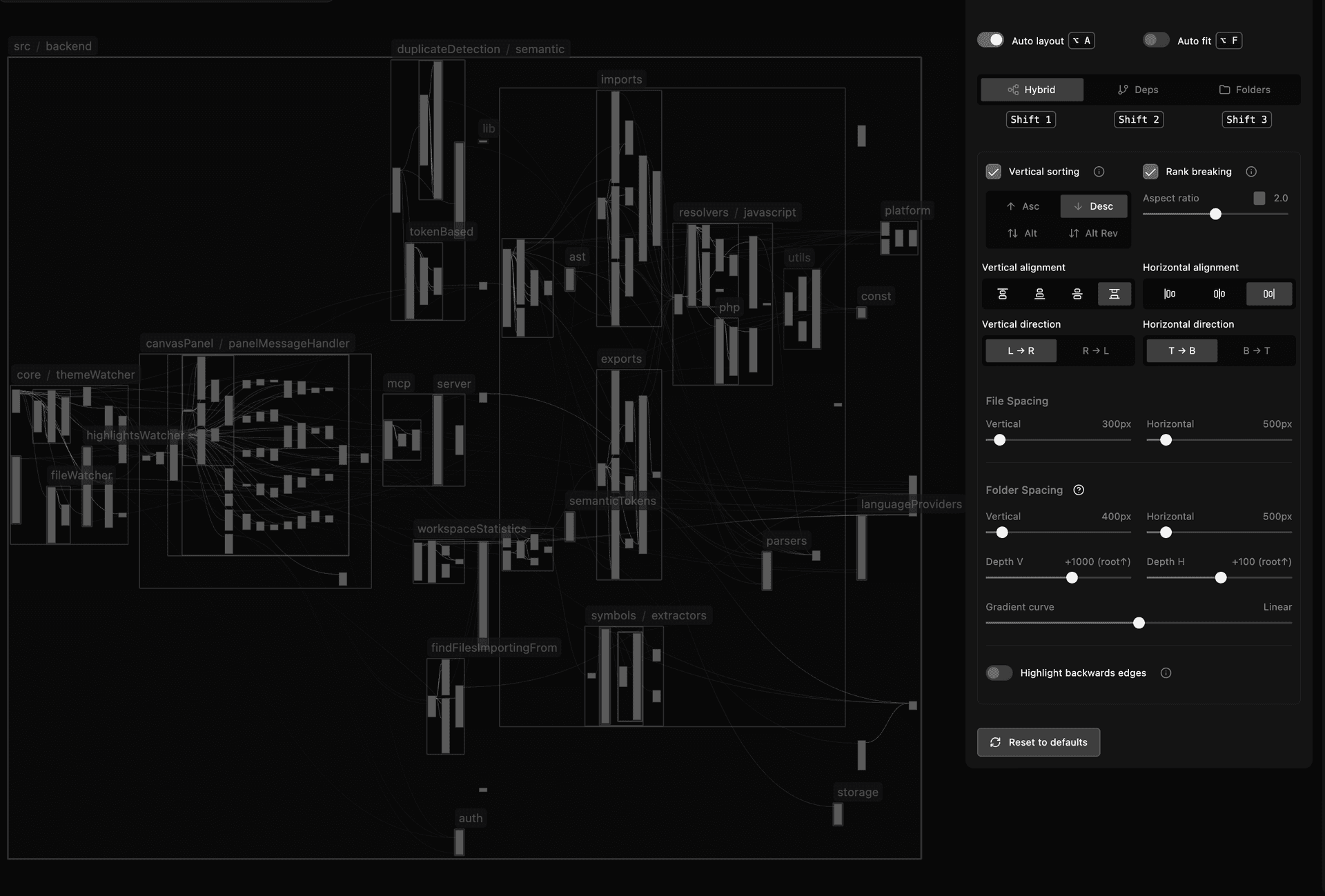
Hybrid layout arranges files and folders by dependency relationships. Entry points appear on the left, dependencies on the right.
How It Works
The algorithm processes your folder hierarchy bottom-up:
-
Build Hierarchical Tree - Files are organized into a tree matching your folder structure. Each node tracks its import and export relationships.
-
Process Leaf Folders First - Starting at the deepest folders, the algorithm builds a dependency map, calculates ranks, and positions nodes in columns.
-
Propagate Up - Each processed folder becomes a single node at the parent level. Its edge relationships are the union of all its contents. Ranking repeats at each level.
-
Apply Final Positioning - Absolute coordinates are calculated and directional transforms applied.
Layout Flow:
- Entry points (files that import from others) position on the left
- Dependencies (files that export to others) position on the right
- The graph flows left-to-right; arrows point right-to-left showing data flow
Rank Calculation:
- Files with no dependencies (pure importers/entry points): leftmost
- Files with dependencies: right of their dependencies
- Circular dependencies: middle
- Isolated files: far right
The algorithm uses weighted edge counting to handle folders with bidirectional dependencies, preventing artificial cycles from mis-positioning entire folders.
Configuration Options
Spacing
File Spacing (Vertical & Horizontal): Distance between individual files in pixels (0-5000px).
Folder Spacing (Vertical & Horizontal): Distance between folder groups in pixels (0-5000px).
Depth Gradient (V & H): Spacing gradient based on folder depth (-5000 to +5000px). Positive values increase spacing for deeper folders; negative values decrease it.
Gradient Curve Intensity: Rate of spacing change (-100 to +100). Negative values create an ease-in effect (slower start), 0 is linear, positive values create an ease-out effect (faster start).
Depth gradient and gradient curve settings help visualize large codebases with many folders. Setting deeply nested folders closer together with more spacing between root-level folders reveals relationships between high-level architectural layers. The opposite configuration (root folders closer, nested folders spaced out) shows detail within each folder and relationships between deeply nested components.
Alignment
Vertical Alignment: How files align vertically within their column
- Top - Align to top edge
- Center - Center alignment
- Bottom - Align to bottom edge
- Fill - Distribute to fill available space
Horizontal Alignment: How files align horizontally within their row
- Left - Align to left edge
- Center - Center alignment
- Right - Align to right edge
Direction
Primary Direction: Main layout flow
- Left to Right (L → R) - Entry points left, dependencies right (default)
- Right to Left (R → L) - Inverts horizontal flow
Secondary Direction: Vertical arrangement
- Top to Bottom (T → B) - Arrange columns top to bottom
- Bottom to Top (B → T) - Arrange columns bottom to top
Sorting
Sort Order: File ordering within columns by dependency count
- Descending - Files with more dependencies first
- Ascending - Files with fewer dependencies first
- Alternate - Alternates between high and low counts
- Alternate Reversed - Reverse alternation
Rank Breaking
Enable Rank Breaking: Allows nodes to break dependency rank to achieve a target aspect ratio, producing more balanced layouts.
Aspect Ratio: Target width-to-height ratio when rank breaking is enabled.
Column Depth Strategy
Which depth value to use when calculating column positions in folders with varying nesting:
- Deepest - Maximum depth (spreads columns more)
- Shallowest - Minimum depth (compacts columns)
- Average - Average depth (balanced)
Highlight Backwards Edges
Highlights edges flowing backwards (right-to-left) in red.
The Hybrid layout positions entry points left and dependencies right, so edges normally flow from exports (right) to imports (left). An edge flowing the opposite direction (exporting file left of importing file) may indicate a dependency direction violation between architectural layers.
Note: A highlighted backwards edge does not always indicate a wrong import. The algorithm minimizes backwards edges by counting and positioning accordingly. Many backwards edges between folders may result from entire layers being positioned unexpectedly rather than individual bad imports. Reconsidering folder structure sometimes resolves apparent violations. Use this as an investigative guide, not a definitive error indicator.
Working with Selections
Layouts are selection-aware:
| Selection | Behavior |
|---|---|
| No selection | Layout applies to all nodes |
| Some selected | Layout applies only to selected nodes |
Auto Layout (Alt/Option+A)
When enabled, layouts automatically apply when:
- Nodes are added to the canvas
- Nodes are deleted
- Node dimensions change (collapse/expand)
Auto Fit View (Alt/Option+F)
When enabled, the viewport adjusts after layouts to fit all nodes in view.
Next Steps
- Symbols & References - Symbol overlays and code analysis