Visualizing Dependencies
Understand how Code Canvas visualizes code relationships through dependency edges
Quick Reference
| Feature | Shortcut |
|---|---|
| Toggle edge opacity | E |
| Full edge opacity | Shift+E |
| Cycle edge style | B |
| Reverse cycle style | Shift+B |
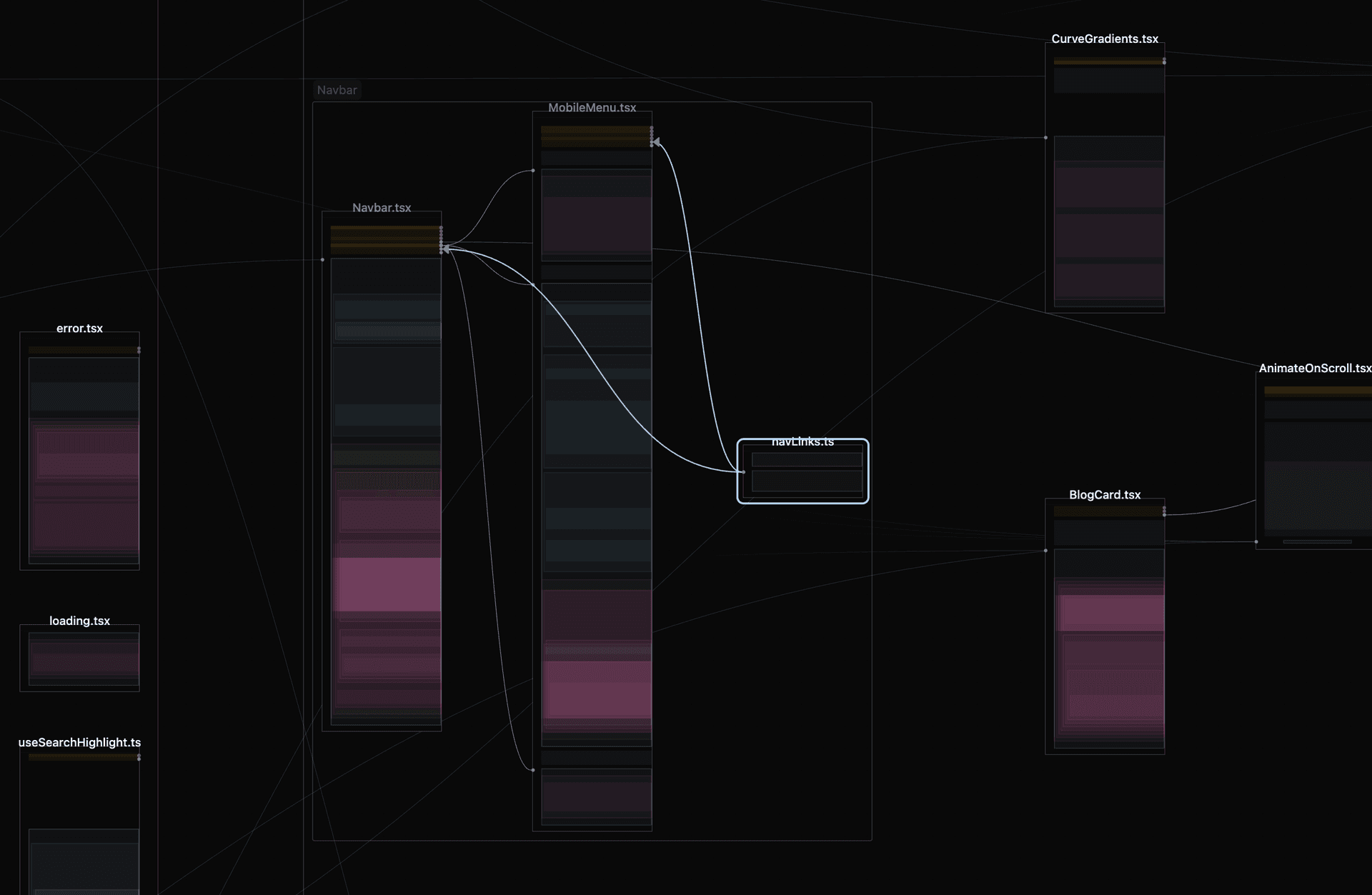
How Dependency Edges Work
When opening files on the canvas, handles are automatically created for all imports and exports in each file. Corresponding imports are then connected to their exports through dependency edges.
- Export handles are placed on the left side of the file, aligned with the export line in the code
- Import handles are placed on the right side of the file, aligned with the import line in the code
This creates a visual representation of your codebase's dependency structure.
Edge Opacity
The default setting for edge opacity is depth-based, which helps you focus on closely related files:
- Edges connecting files at the same level in the folder hierarchy have 100% opacity
- As edges connect files further apart in the folder structure, opacity decreases exponentially
- Opacity progression: 100% → 50% → 25% → 12.5% (minimum)
- The minimum opacity is capped at 12.5% to ensure edges remain visible
You can toggle between depth-based opacity and full opacity using the shortcuts in the Quick Reference above.
Dependency Edge Style
Code Canvas supports three edge styles that you can cycle through using B:
- Bezier - Curved lines with smooth appearance
- Straight - Direct lines between nodes
- Stepped - Right-angle lines with a diagram-like style
Using straight or stepped edge styles can significantly increase performance when many edges are displayed on the canvas.
Edge Gradients
Edge gradients help reduce visual clutter when many edges are present on the canvas.
When enabled, each edge is split into three segments, all of which have adjustable opacity and width. For example, you can reduce the middle segment's opacity to 0% and adjust its width to control how much of the edge ends remain visible. This creates a cleaner view while still showing the connection points.
Minimum distance toggle: Apply gradients only to edges connecting nodes beyond a certain distance, keeping nearby connections fully visible.
Re-export and Barrel Edges (JS/TS)
When using index files for re-exports (index.ts or index.js), Code Canvas provides two different visualization modes for barrel patterns:
Re-export edges show connections that originate from the actual source file rather than the index file, revealing where exports truly come from.
Barrel dependency edges show edges that pass through index.* barrel files when re-exporting symbols, hiding normal imports into barrels that aren't re-exports.
Options:
- Show re-export edges - Display edges from actual source files (with optional highlight)
- Show barrel edges - Display edges passing through barrel files (with optional highlight)
These two modes provide different perspectives on the same dependency structure. Re-export edges emphasize the original source, while barrel edges show the actual import path through index files. For the clearest visualization, enable one mode or the other depending on whether you want to see where exports originate or how they flow through your barrel structure—using both simultaneously may create visual confusion.
Stacking Import and Export Handles
Instead of representing connections between two files with individual edges for every import and export, you can stack handles to consolidate them into a single connection to the file header.
When enabled for export handles, all exports are consolidated into the header. Similarly, enabling it for import handles consolidates all imports into a single header connection. This greatly improves performance by reducing the number of edges and handles on the canvas, and significantly reduces visual clutter when many files are open.
Hide Unconnected Export Handles
When enabled, export handles without any connected edges are hidden from view. This helps improve performance and reduce visual noise.
This is especially useful for languages like Python that lack explicit exports—since everything at the root level would normally have an export handle, hiding unconnected ones significantly cleans up the view.
Edge Arrows
Edge arrows display directional indicators showing the import direction along edges.
Important: Edge arrows can significantly reduce performance and should not be enabled for all edges at all times.
Key elements only toggle: Enable this option to show edge arrows only on:
- Edges connected to selected tokens
- Edges in the currently selected file
This provides directional context where you need it while maintaining performance.
Next Steps
- Layout Algorithms - Learn about automatic layout options for organizing your canvas