Introduction
Code Canvas is a VS Code extension that lets you visualize dependency relationships, code structure, and git changes on a zoomable canvas
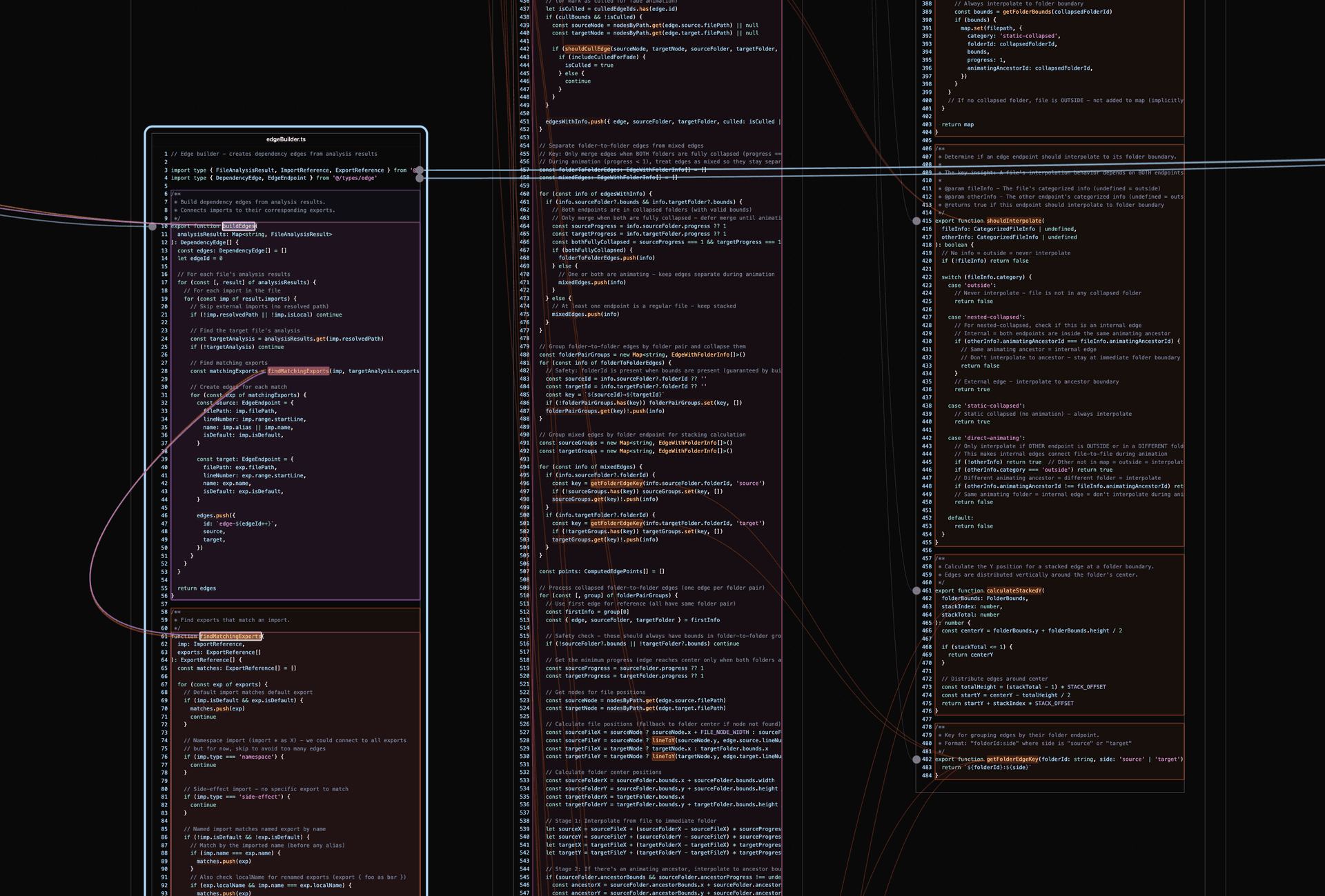
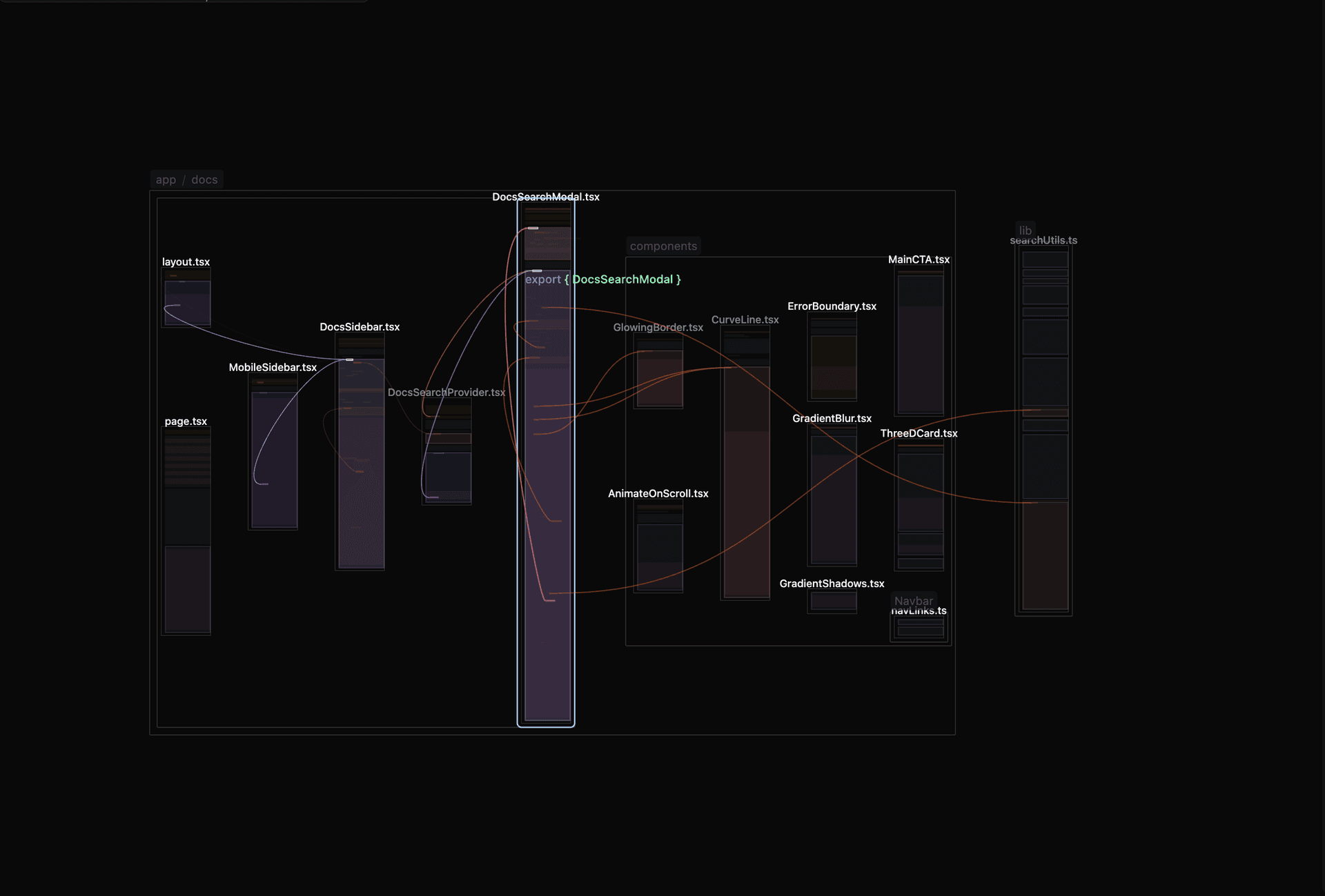
Files appear as visual panels showing the actual code, just like editor tabs, but arranged spatially. Import statements connect to their sources with lines that run from the exact line of the import to the exported symbol. Zoom out to see how files and folders relate to each other. Zoom in to read the code.
The Problem
Most developer time goes to reading and understanding code, not writing it. Tools like Cursor, Copilot, and Claude Code can generate dozens of files from a single prompt. But reviewing those changes still means clicking through diffs one file at a time, or scrolling through a chat log trying to piece together what happened.
When AI writes most of the code, you don't build the mental model that comes from writing it yourself. You approve generated changes because they pass tests, not because you traced the logic. Weeks pass and the file tree fills with modules you've never read closely.
For small apps, this doesn't matter much. At scale, you need to understand what's being built, or the codebase becomes unmaintainable.
Code relationships form a graph: imports, exports, function calls, data flow. Editors show one file at a time. You click through definitions, hold the path in memory, click back. The structure exists in the codebase but not on screen.
How Code Canvas Helps
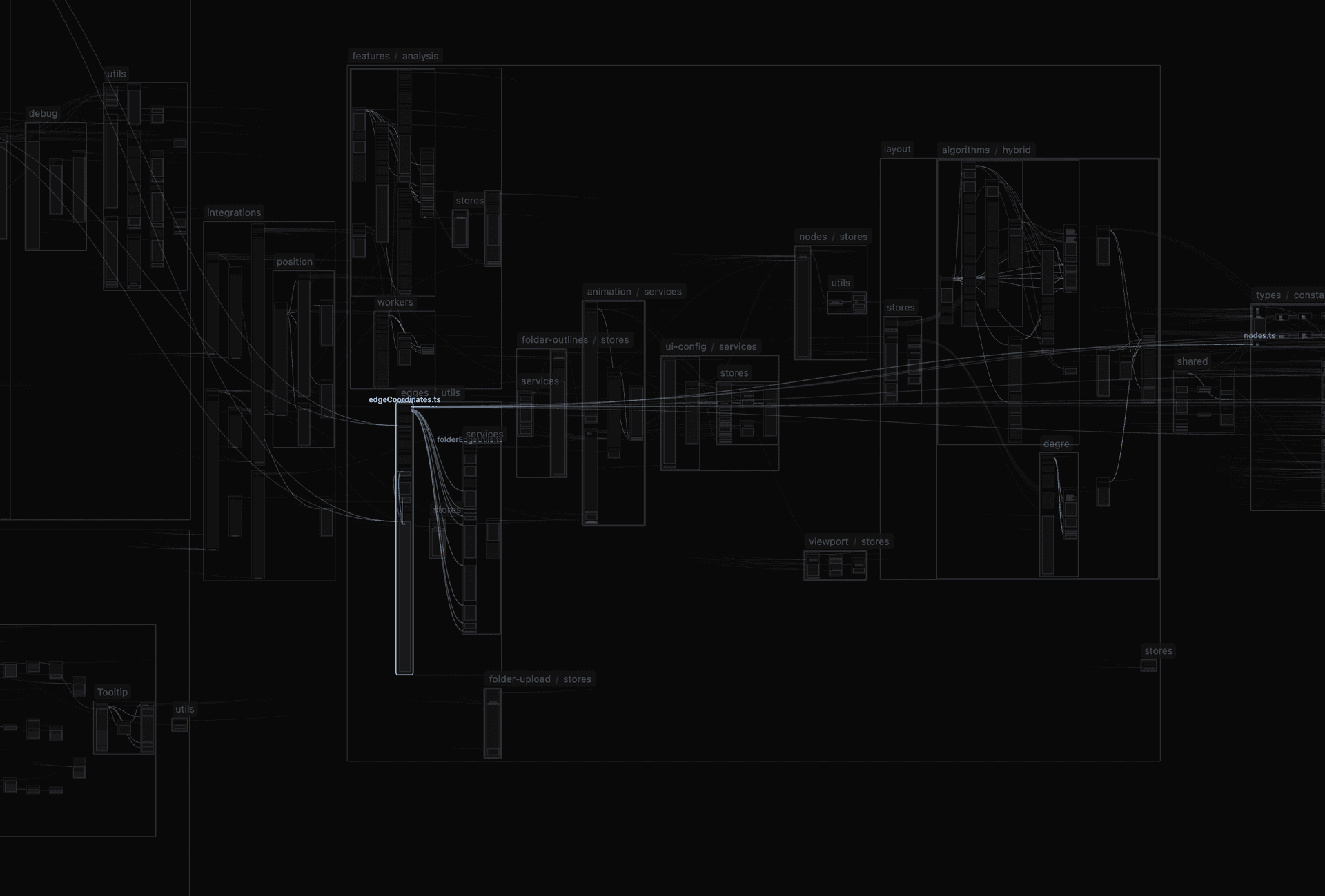
Code Canvas shifts the view from individual files to the relationships between them. Open files on a canvas and see how they connect. Zoom out to see the architecture. Zoom in to read the code.
When AI generates changes across 15 files, you can see all of them at once: what was added, what was modified, how the new code connects to existing code. Instead of scrolling through diffs, you see which files changed and how they relate to each other.
You work at the level of functions, files, and modules rather than lines and characters.
Key Features
Import/Export Visualization
Lines connect files that import from each other. You see which modules depend on which without reading through import statements.
Canvas Layouts
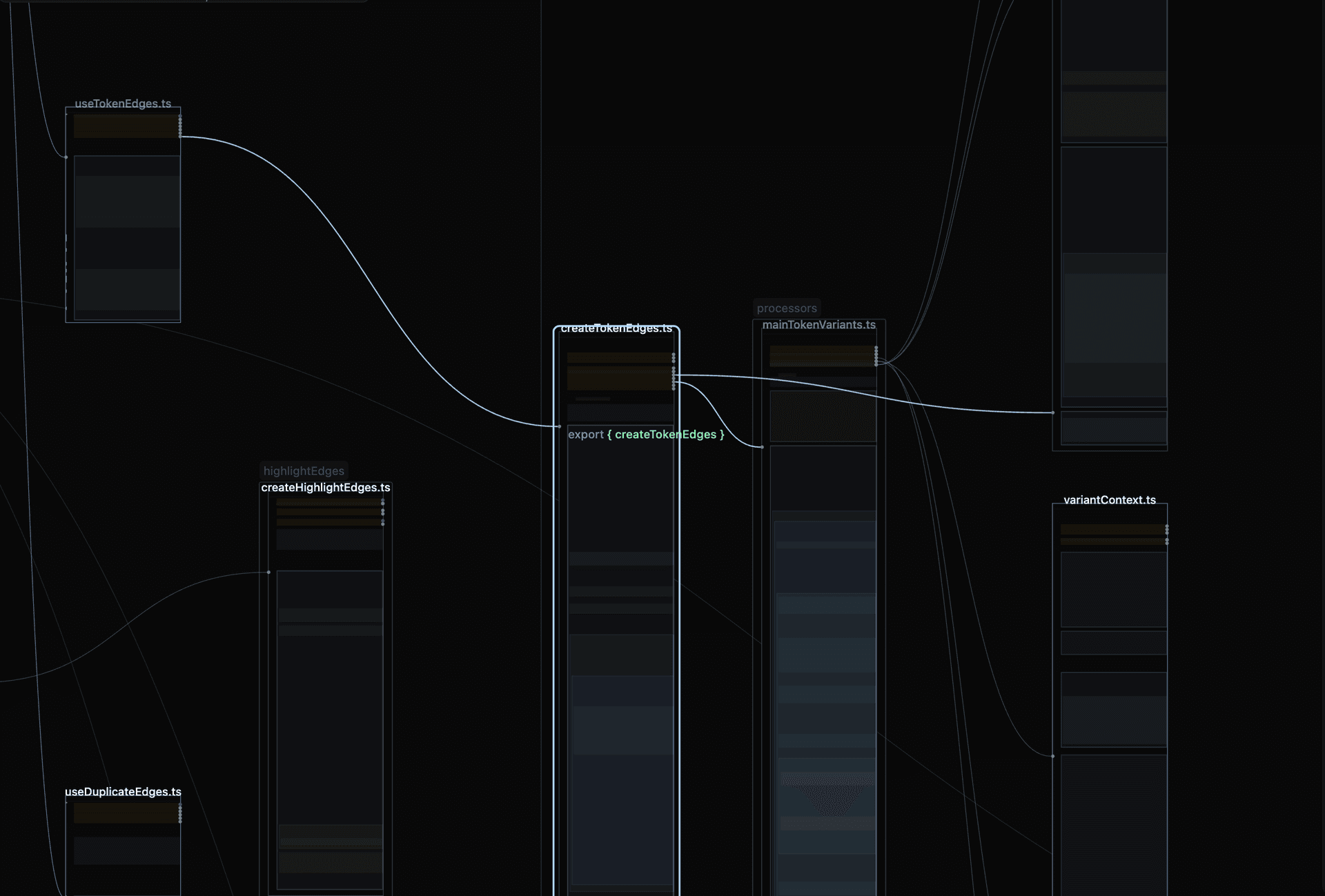
Files are arranged by default based on both dependencies and folder structure. The file tree shows nesting; the canvas shows how files and folders actually connect through imports and exports. Folders that depend on each other are positioned accordingly, so the spatial arrangement reflects the architecture of your code.
Symbol Highlights & Token Selection
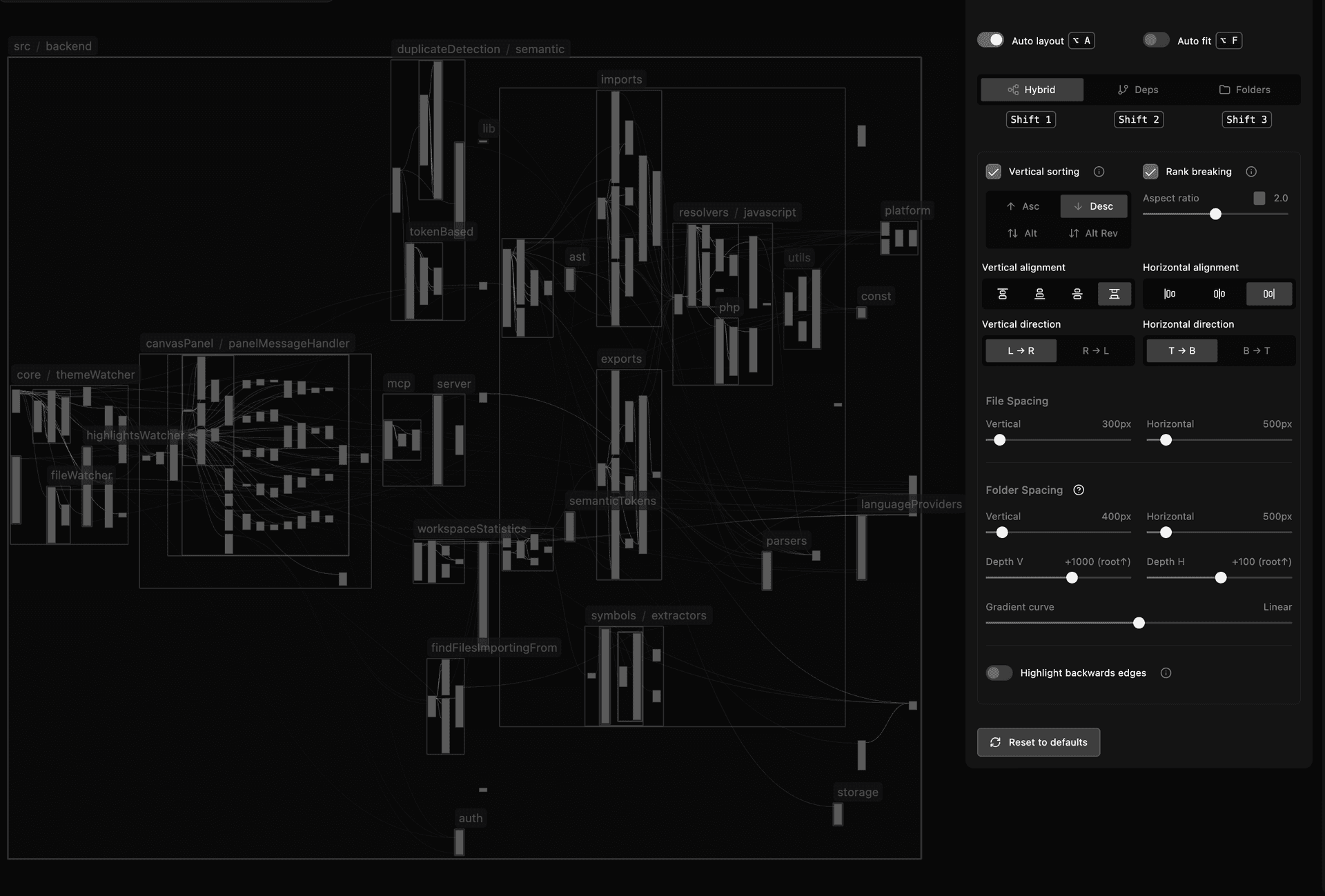
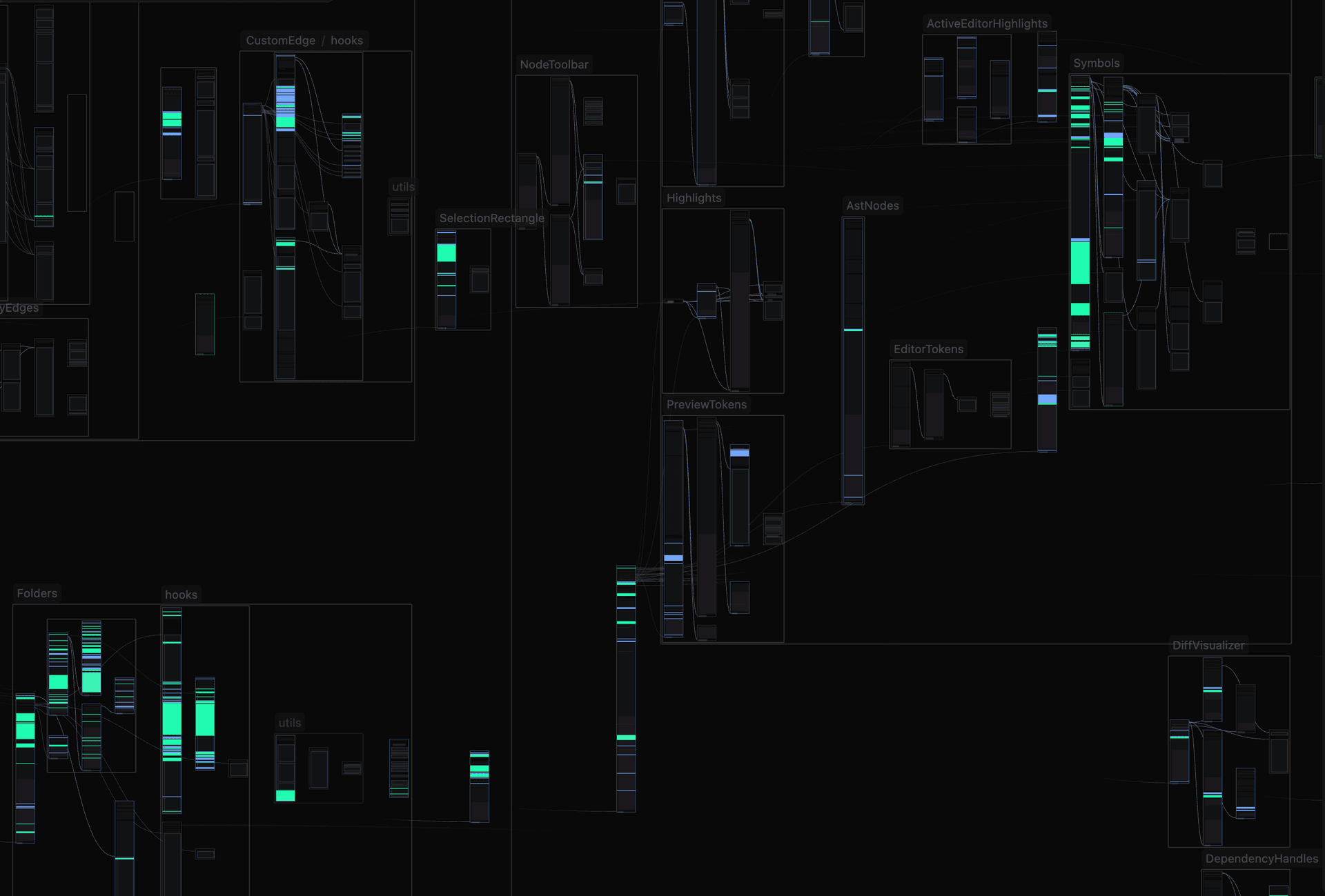
Symbol highlights overlay the outline of functions, classes, and variables within a file, letting you see its structure at a glance. Command click (or Control click) on any token to visualize its relationships directly on the canvas: edges connect to definitions, implementations, references, and call hierarchy, while relevant code blocks are highlighted in place.
More on symbols • More on tokens
Git Changes
Uncommitted changes appear directly on the canvas. Files show git status indicators. Diff visualization highlights additions and deletions down to the character level.
When you're reviewing AI-generated code, you can see in real time what's changing and where.
What's Next?
- Installation - Install from the VS Code marketplace
- Quick Start - Get up and running in minutes