Symbol Overlays
Visual representations of code structure that help you understand the high-level organization of your files
Overview
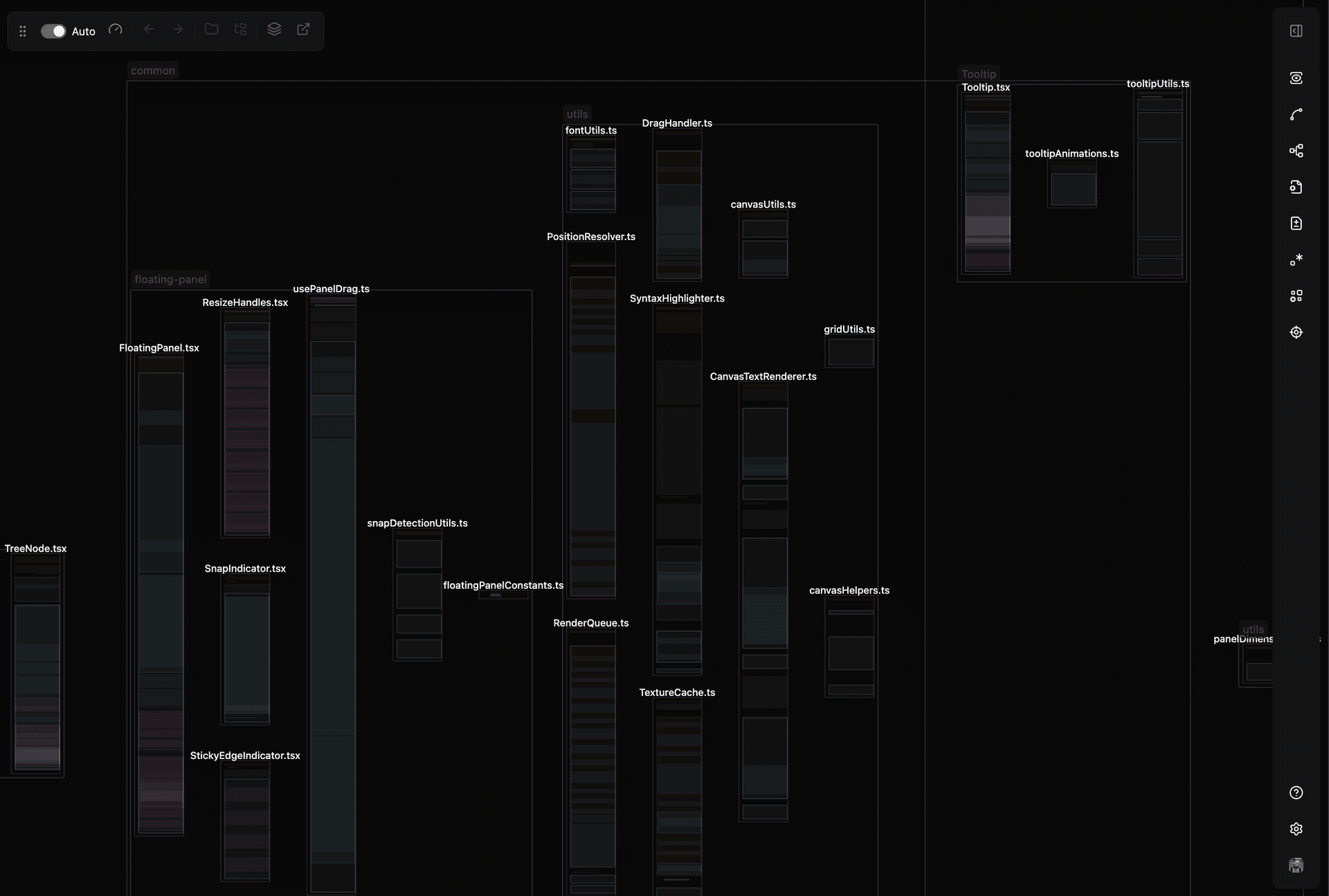
Symbol overlays help you see the high-level structure of a file and multiple files at once by highlighting different parts of code with distinct colors for functions, variables, classes, and more. Instead of reading through code line by line, you can instantly understand how a file is organized.
What Are Symbols?
Symbols are visual representations based on VS Code's symbol outline, plus additional symbols that VS Code doesn't track:
- Standard symbols - Functions, classes, methods, variables, interfaces, types, enums
- Imports & Exports - Import statements and exported symbols
- Comments - Comment blocks and documentation
- Language-specific - JSX elements, React components, and other framework-specific constructs
Quick Reference
| Feature | Shortcut |
|---|---|
| Toggle symbols | S |
| Refresh canvas | Shift+R |
| Select symbol token | Cmd/Ctrl+Click on symbol |
| Multi-select tokens | Hold Shift while clicking |
Enabling Symbols
Press S to toggle symbol overlays on all file nodes in your canvas.
Symbol Settings
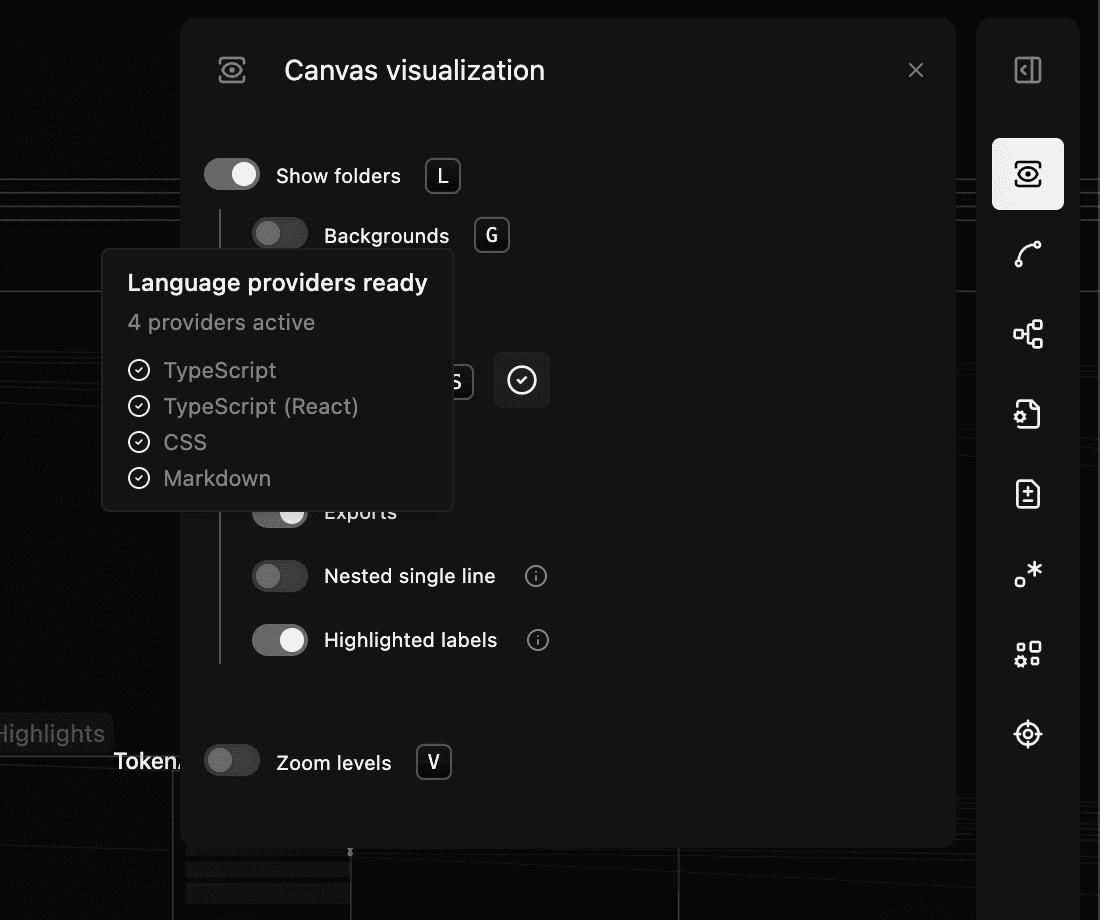
In the Canvas Visualization section of the toolbar, you can toggle several display options:
- Hide nested single-line symbols - Shows only larger symbols that make up the main structure, without cluttering the view with every variable or property nested inside other symbols
- Hide comments - Toggle visibility of comment symbols
- Highlight exports - Visually distinguish which symbols are exported from a file
Symbol Colors
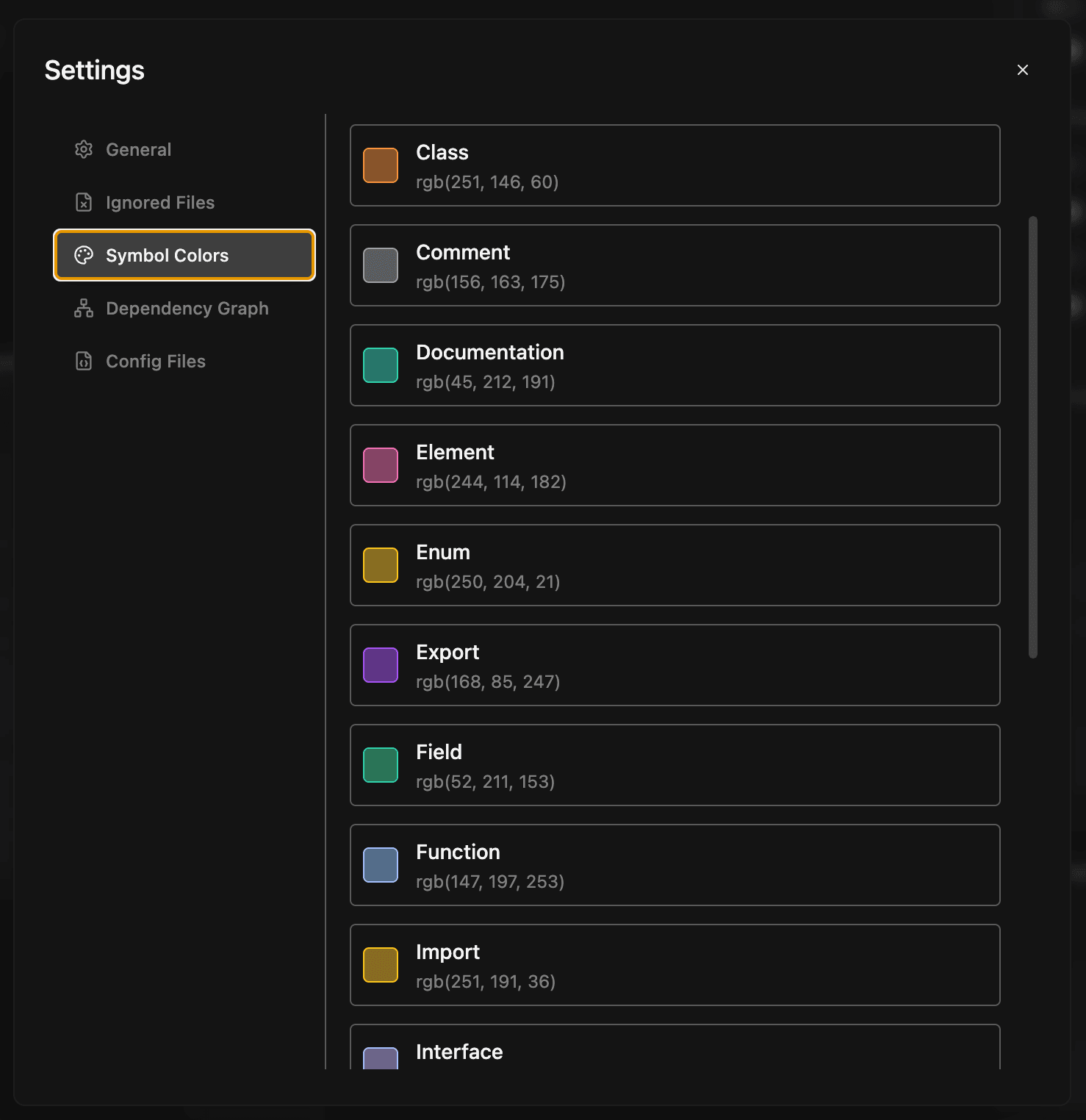
Symbol colors are configurable in the extension settings:
- Open settings with Cmd+, (Mac) or Ctrl+, (Windows/Linux), or click the settings icon in the bottom right
- Navigate to Symbol Colors
- Choose between Colored (distinct color per symbol type) or Monochrome (uniform color)
Selecting Symbol Tokens
When zoomed out to see only symbols (not the code), you can interact with them:
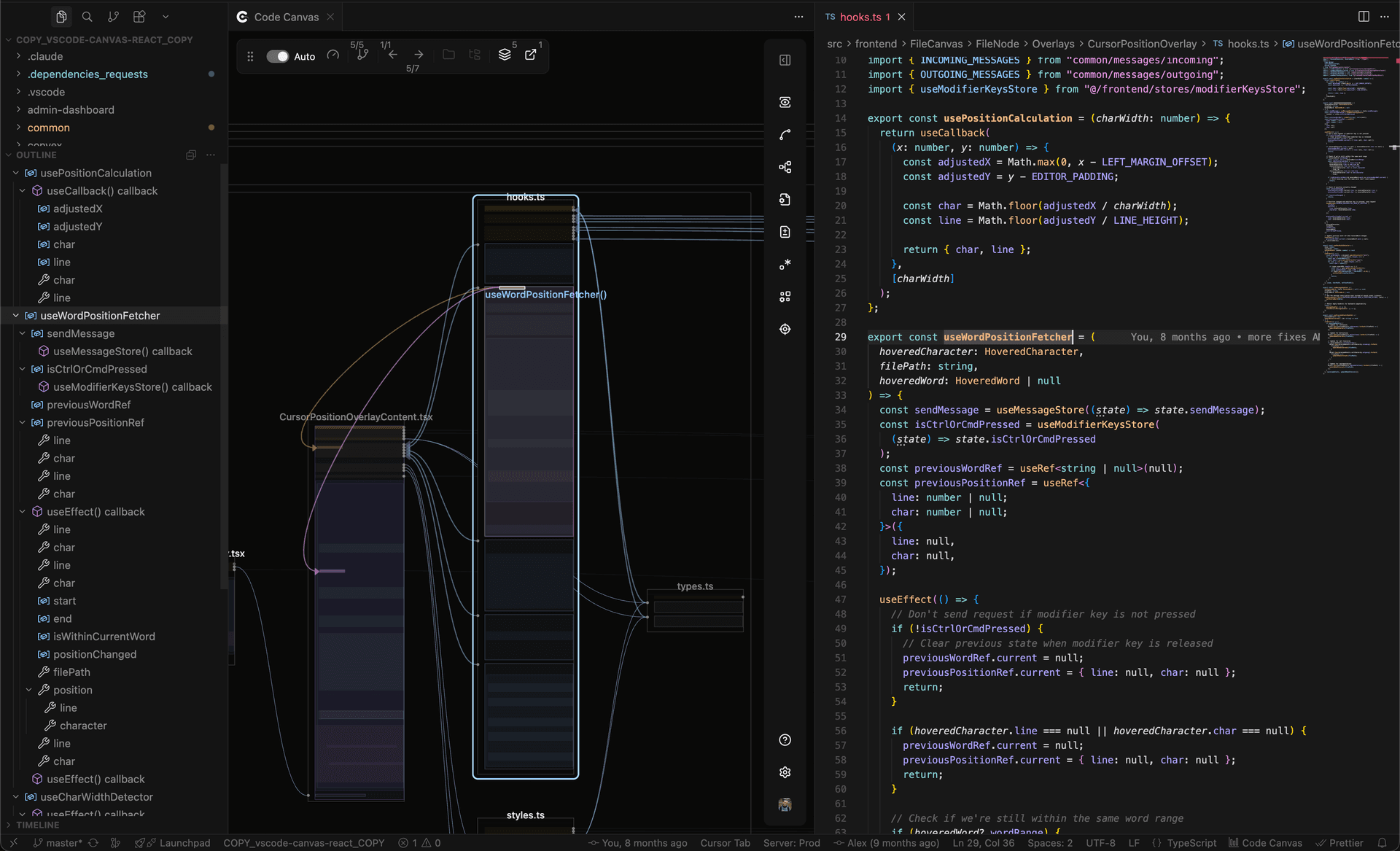
- Cmd/Ctrl+Click on a symbol to select its name token - for a function this selects the function name, for a variable it selects the variable name
- Hold Shift while clicking to select multiple tokens
- Highlight All Top Level Symbols button in the action bar selects all top-level symbols in the selected file(s)
- Right-click on a symbol and choose Highlight Direct Children to select all of its direct child tokens
Learn more about token selection and references in the Token Selection section.
Troubleshooting: Symbols Not Loading
Symbol overlays require VS Code's language providers to be loaded. If symbols aren't appearing:
- Open a file of that type in VS Code - The symbol provider loads when you first open a file of that language. You can Alt/Option+Click a file on the canvas to open it in a VS Code editor tab
- Refresh the canvas - Press Shift+R while the canvas is focused
- The provider should now be loaded and all files of that type will display symbols correctly
Checking Loaded Providers
You can see which language providers are currently loaded:
- Look at the Canvas Visualization options in the toolbar
- Hover over the icon next to the Symbols toggle
- A tooltip shows all loaded language providers
Future Enhancements
Additional customization options for symbol highlighting are planned for future releases, giving you more control over how symbols help visualize your code structure.
Related
- Token Selection - Learn about selecting tokens and viewing references