Git Integration
Visualize git changes, diffs, and track uncommitted modifications
Quick Reference
| Feature | Shortcut |
|---|---|
| Open changed files | Shift+O |
| Toggle diff modes (changes/unified/split) | D or Shift+D |
| Collapse unchanged lines | C |
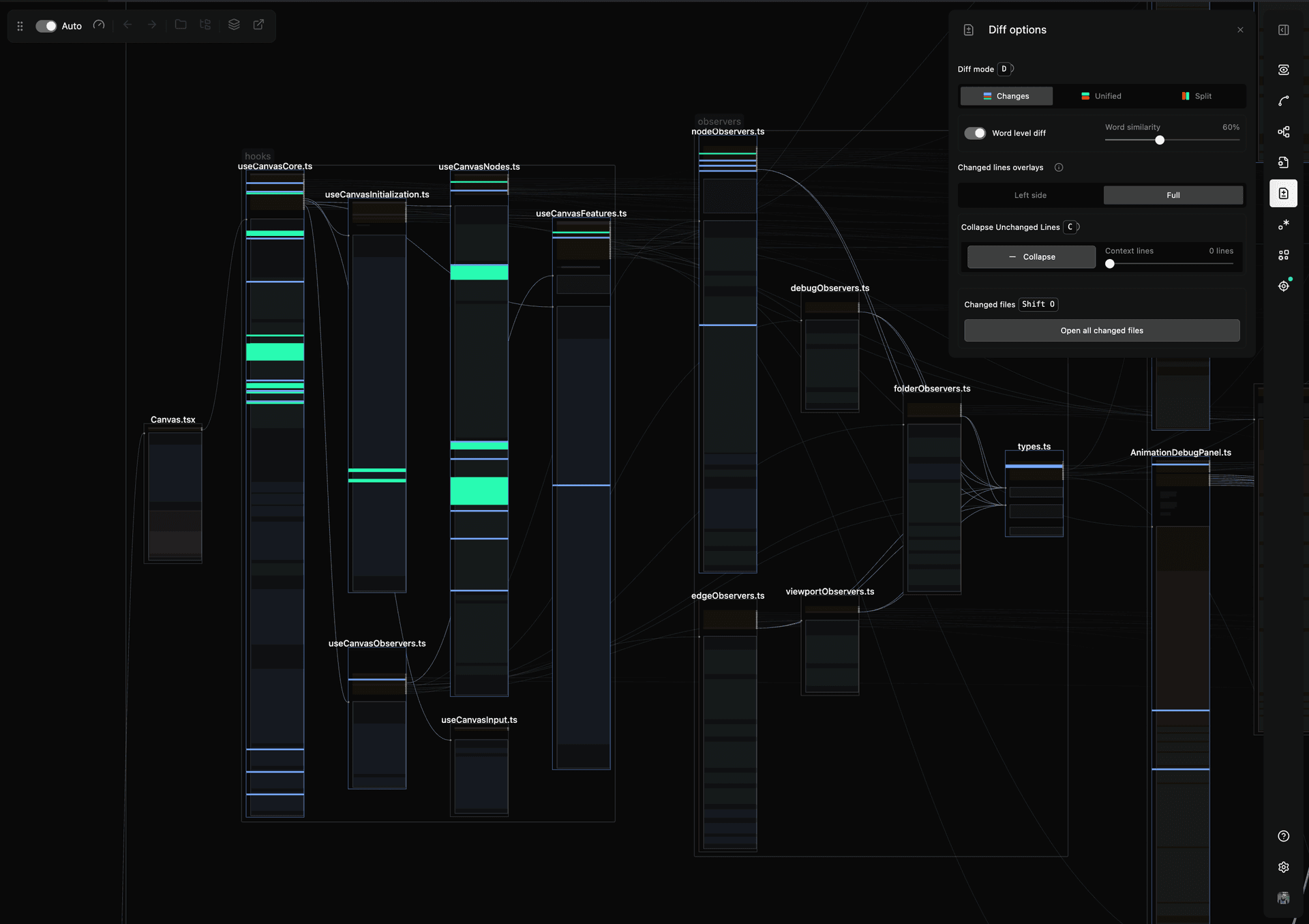
Overview
Code Canvas displays your local workspace changes by comparing your working files against HEAD on your current branch—the same changes you see in VS Code's source control view.
Opening Changed Files
Press Shift+O to open all files with uncommitted changes onto the canvas. You can also use the floating action toolbar—when there are changed files not yet on the canvas, a button appears showing the count of unopened changed files, allowing you to add them with a single click.
Diff Modes
Toggle between three diff modes using D or Shift+D:
| Mode | Description |
|---|---|
| Changes | Inline highlighting similar to VS Code editor |
| Unified | Traditional diff view with added/deleted lines |
| Split | Side-by-side comparison like GitHub PR reviews |
Applying to Selected Files
You can toggle diff modes for individual files or multiple files:
- No files selected — toggles diff mode for all files on the canvas
- Files selected — toggles diff mode only for the selected files
This allows you to view different files in different diff modes simultaneously.
Symbols and Dependencies in Diff Modes
LSP analysis works in all diff modes. In changes, unified, and split views, function highlights and symbol connections stay aligned with the rendered diff content.
Dependency edges also account for collapsed unchanged lines, so connections continue to point to the correct location in the file even after collapsing context.
Change Line Overlays
In the regular changes mode, you can control how changed lines are highlighted:
| Option | Description |
|---|---|
| Full | Entire line is highlighted, visible when zoomed out |
| Left side | Small indicator on the left margin, like VS Code |
Toggle between these options using the "Change lines overlay" setting.
Word-Level Diffs
Enable word-level diffs to highlight individual changed words within modified lines rather than entire lines. You can adjust the word similarity threshold to control how sensitive the detection algorithm is when identifying word changes.
Collapsing Unchanged Lines
Press C to collapse unchanged lines, showing only the modified sections. You can configure the number of context lines that appear around each change.
When You Commit
When you make a commit, all files on the canvas are automatically refreshed to reflect the new state. Deleted files are generally removed from the canvas after a commit.
If you need to find deleted files, open the File Actions section in the toolbar (4) and use Select Deleted to select all files that have been deleted from your working tree.