Installation
How to install Code Canvas from the VS Code marketplace
Install from VS Code
- Open VS Code
- Go to the Extensions view (Cmd/Ctrl+Shift+X)
- Search for "code canvas app"
- You can do the same for the Cursor marketplace, but you need to scroll a bit further down the list to find it
- Click Install
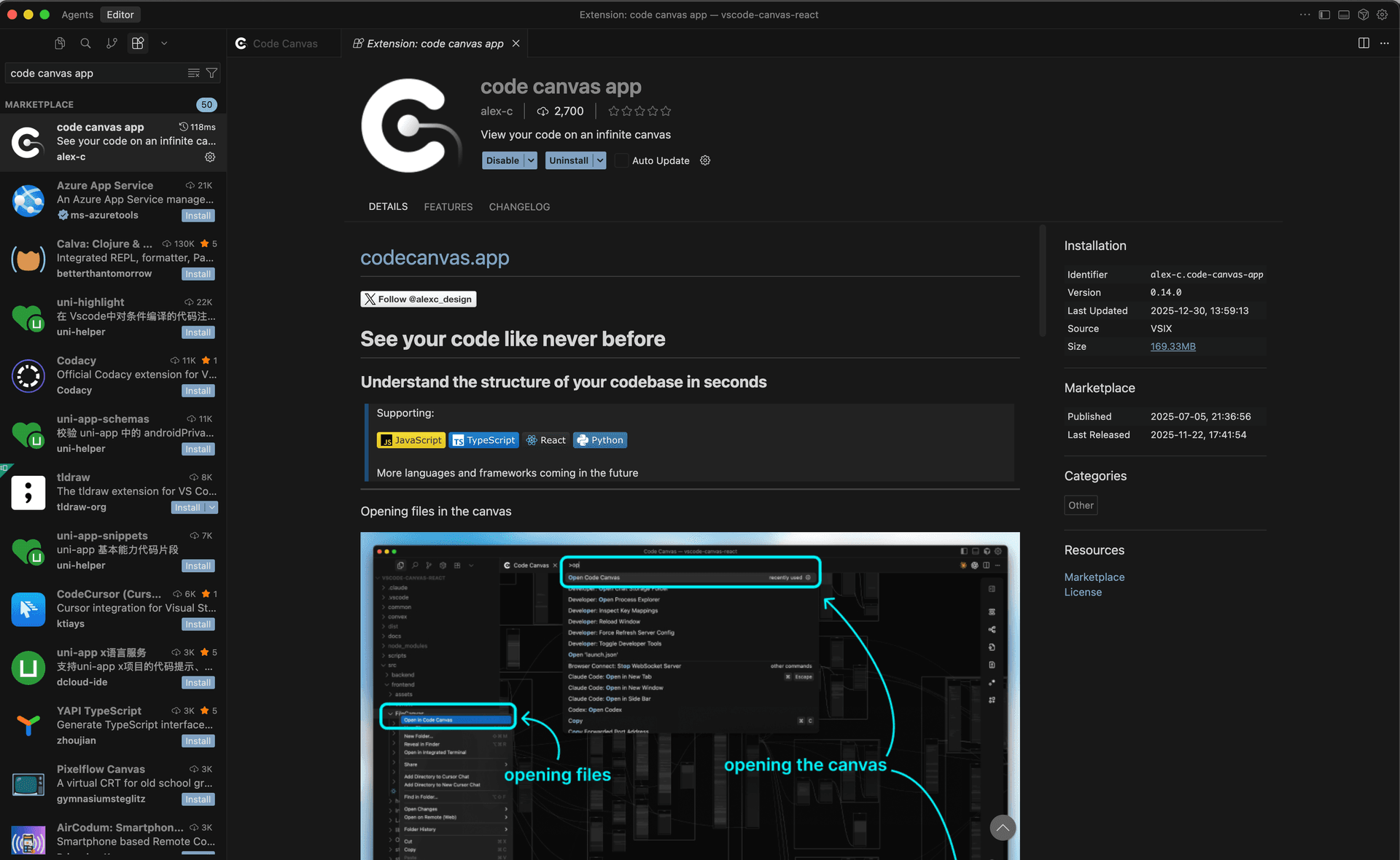
Or use the direct links:
- VS Code: Code Canvas on VS Code Marketplace
- Cursor: Code Canvas on Open VSX
Install via Command Line
VS Code:
code --install-extension alex-c.code-canvas-app
Cursor:
cursor --install-extension alex-c.code-canvas-app
First Launch
After installation:
- Open the Command Palette (Cmd/Ctrl+Shift+P)
- Search for "Open Code Canvas"
- Press Enter
Auto-Open Setting
Want Code Canvas to open automatically when you start VS Code? You can enable it in two ways:
Via VS Code Settings:
- With VS Code in focus, open Settings (Cmd/Ctrl+,)
- Search for "Code Canvas: Auto Open On Startup"
- Enable the checkbox
Via Code Canvas Settings:
- Open Code Canvas
- Press Cmd/Ctrl+, while the Canvas window is in focus
- Toggle "Auto open canvas on vscode startup"
Troubleshooting
Extension Not Appearing
Try reloading VS Code (Cmd/Ctrl+Shift+P → "Developer: Reload Window").
Performance Issues
For very large projects, consider configuring ignore patterns to exclude node_modules, build directories, and other generated files.
When opening hundreds or thousands of files at once, the default performance settings might not be ideal. There are certain settings you can toggle to increase performance.
Next Steps
Ready to explore? Head to the Quick Start guide to learn the basics.